How to add video to Salesforce email campaigns with Playable
Step-by-Step Tutorial
How to Add Video to Salesforce Marketing Cloud (SFMC)
Log into Salesforce Marketing Cloud
Log into the Salesforce Marketing Cloud platform. Fill out the following details:
Username
Password
Create a new email campaign
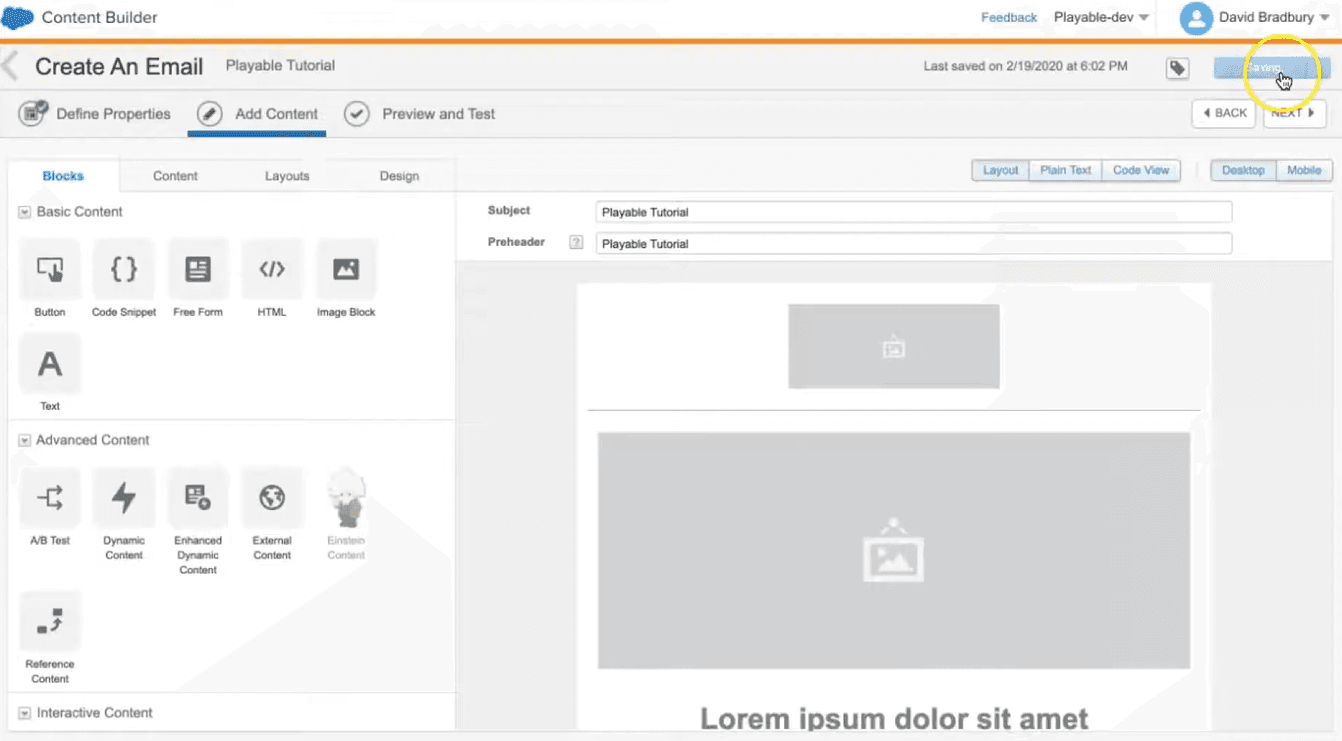
Once you have logged in, create a new email campaign. You can either start with a blank canvas or an existing email template. Fill out the required fields and design your email using content blocks (if it is a blank canvas).
Make sure to add or pick a template with an Image Block as a placeholder to for where the video will be.
Use the Playable app via AppExchange
You need to access the Playable platform using the Playable app from the AppExchange.
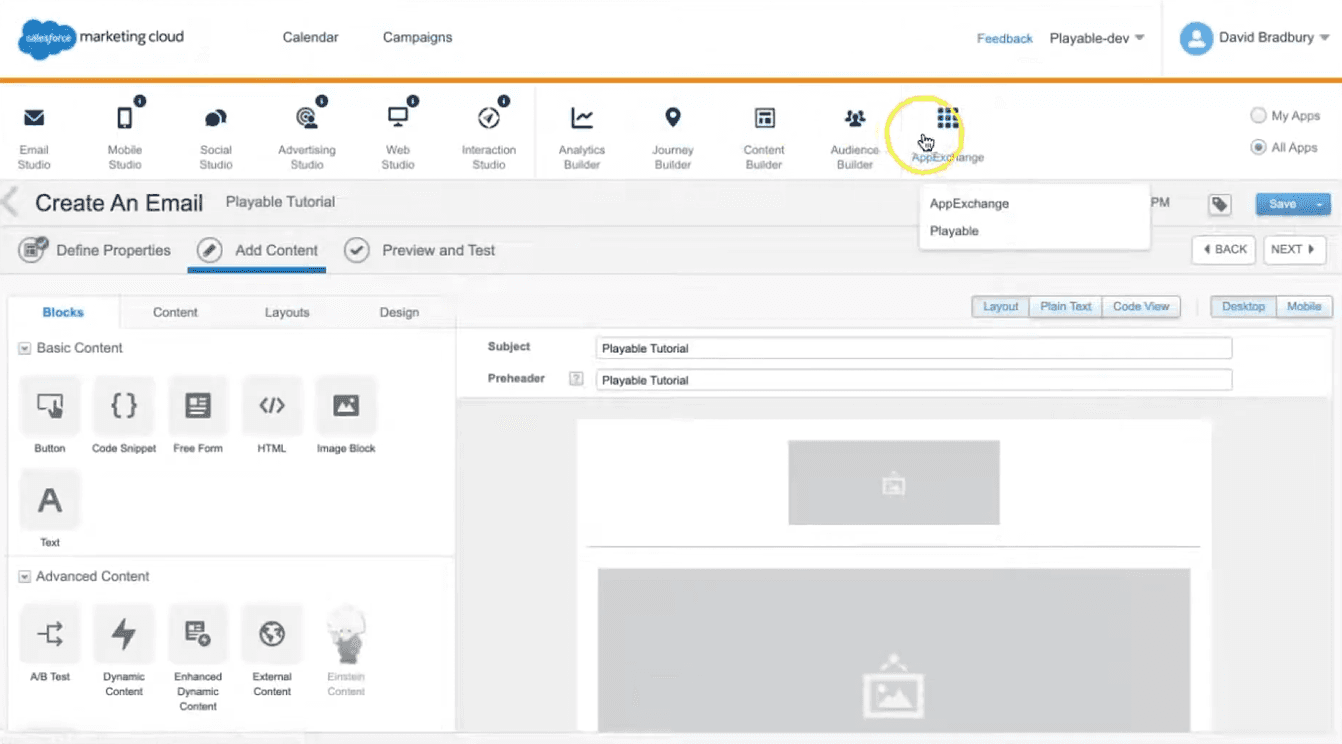
Hover and click on the Salesforce logo
Click on AppExchange
Click on the Playable app which will send you to the Playable platform
Make sure you added the Playable app from AppExchange. Learn how to access the Playable app here. Make sure you are also logged into your Playable account.
Add a new Playable video
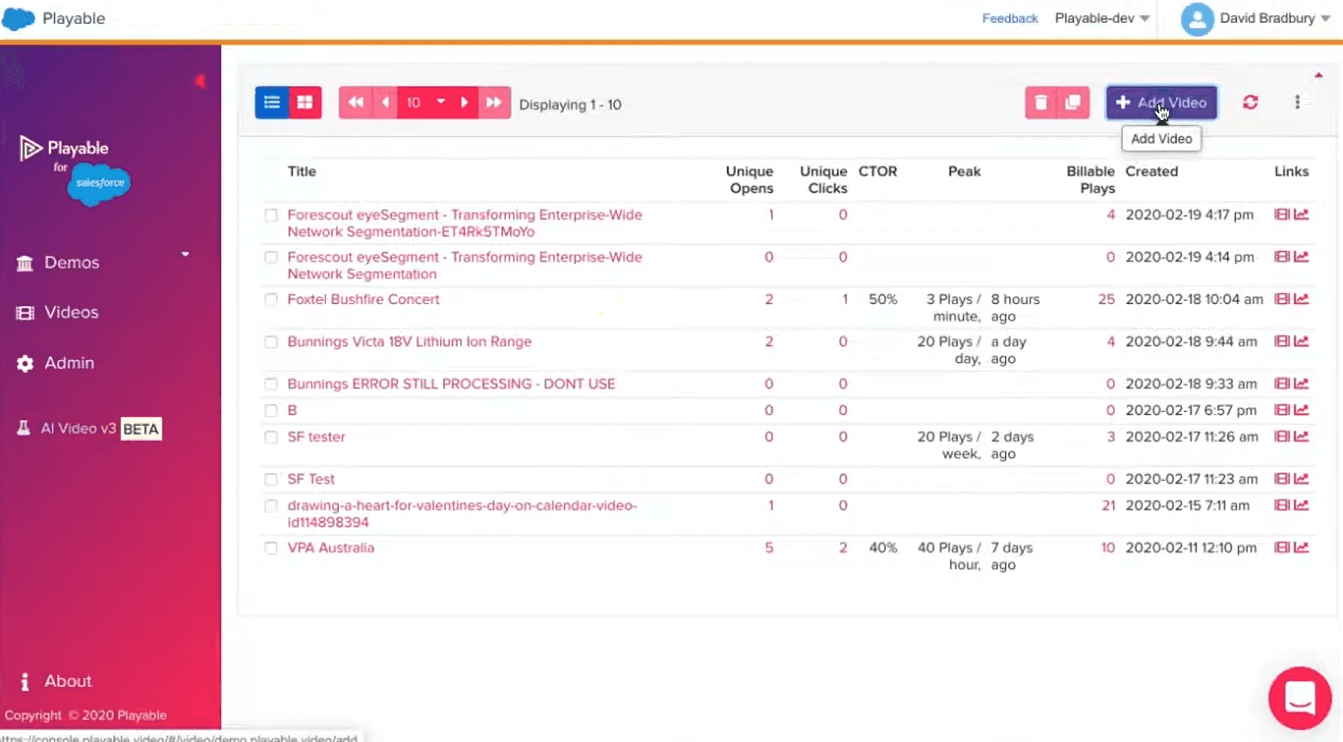
Create and add a new video in Playable.
Click Add Video
Add Video Title
Upload Video via computer, URL or stock library
You can choose to edit your video output like dimensions or loop
Create your video edit clip
When you upload your video, Playable automatically creates a 10-second video edit.
If you wish to edit your uploaded video to create your own clip, click on Editor. You can create/edit your clip using the clip panes and timing slider.
You can only create a 10-second edited clip as this ensures that all recipients receive the best video email experience.
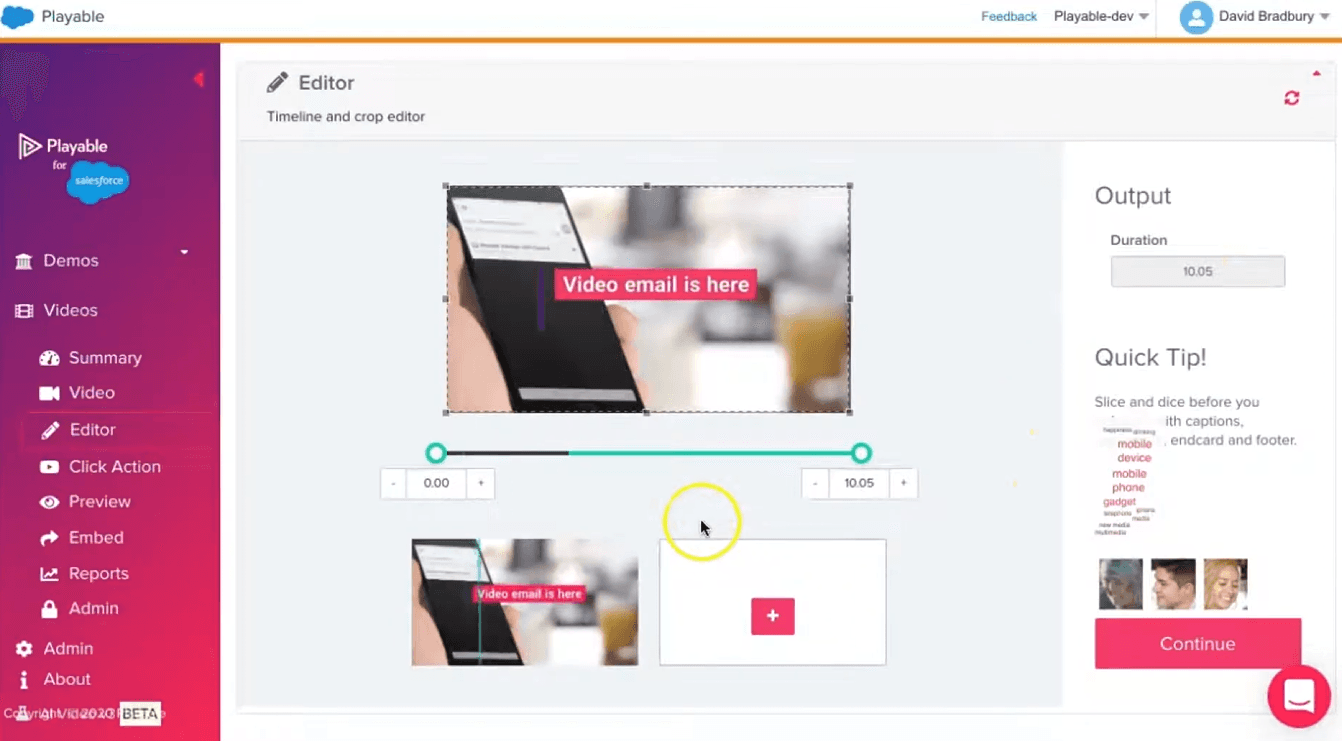
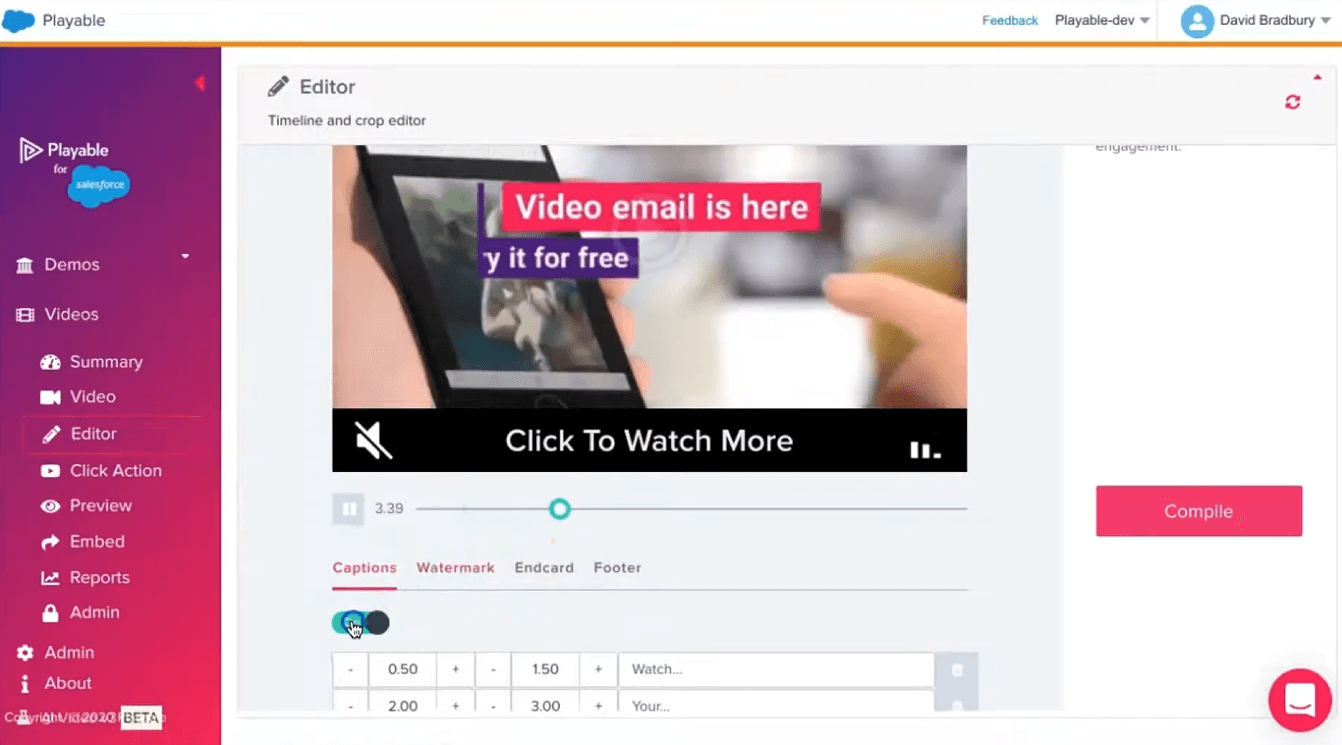
Using the Editor
Once you are happy with the 10-second edited clip, click Continue.
Here you can add video enhancements:
Add captions
Include a watermark
Add an endcard
Include a footer
Once you are happy with video edit, click on Compile to finalize.
Add a Click Action
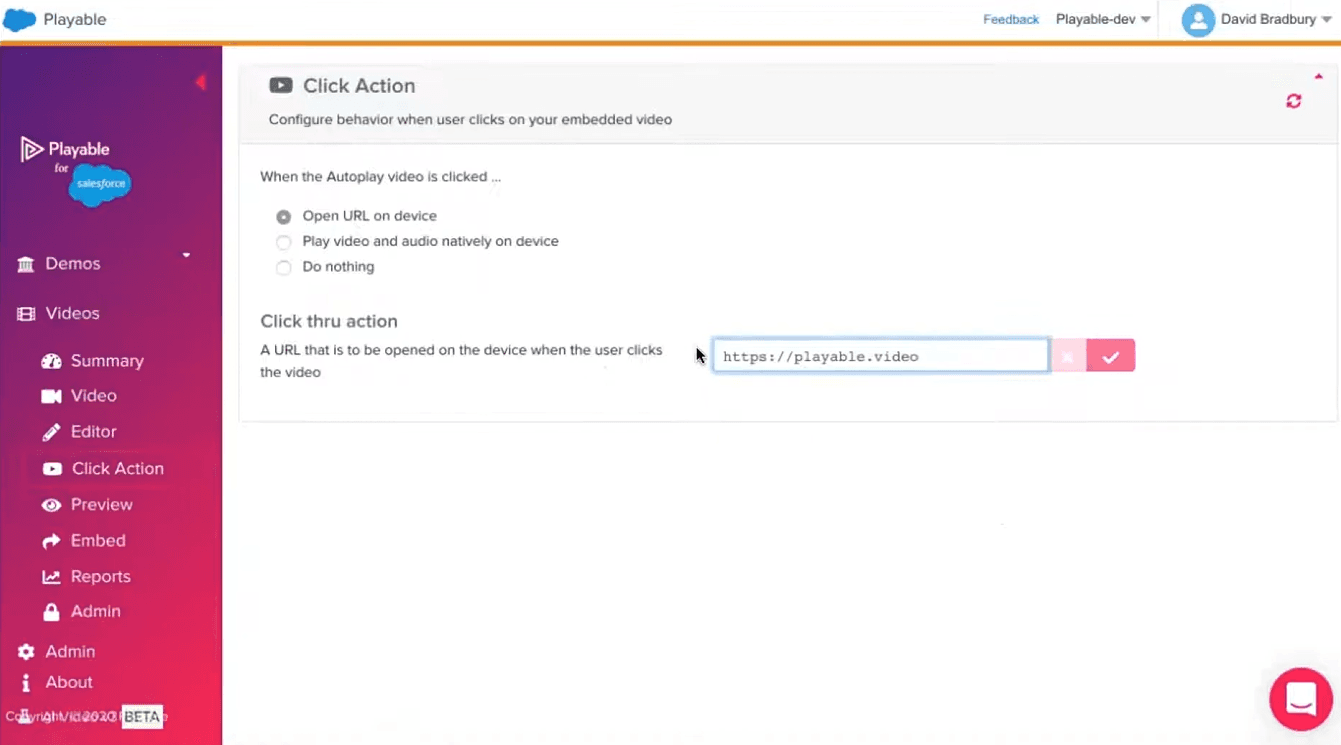
If you wish to redirect the user when they click on the video, you can add a Click Action. There are several options:
Open URL on device
Play the video and audio on audio
Do nothing
If you want to redirect the user to a specific website or landing page, you can paste the URL in the box and save by clicking on the Check symbol.
Select video thumbnail image
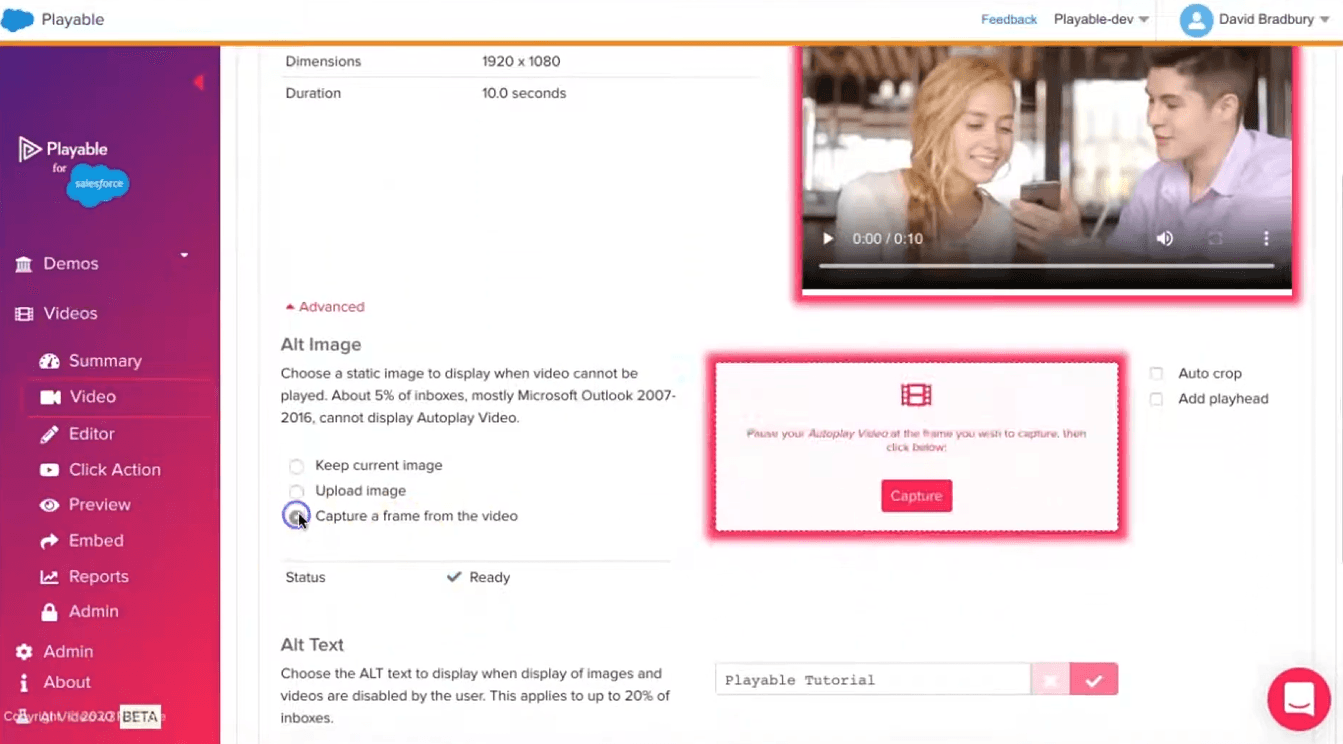
Select a video thumbnail image to act as a fallback image for users using old versions of email clients or devices. Click on Video, then Advanced, and scroll down to Alt Image. You have options for your thumbnail image:
Keep the current image
Upload an image
Capture a video frame
If you wish to capture a frame, click on Capture a frame from the video, then Capture.
Preview and test the video email
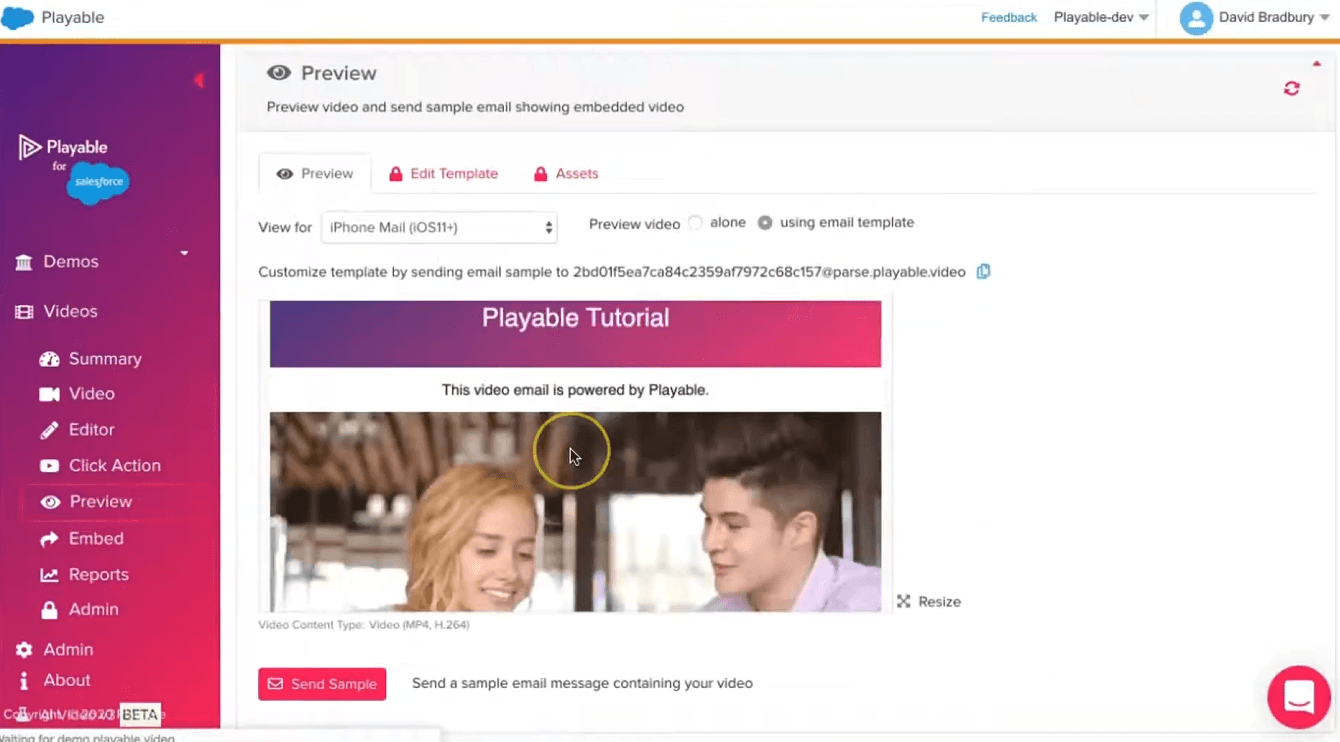
Click on Preview to view a sample of the video email. You can also view the preview for different devices by clicking on the dropdown next to View for.
To test, click on Send Sample and enter recipient details, then click Send.
Embed the video in Salesforce Marketing Cloud
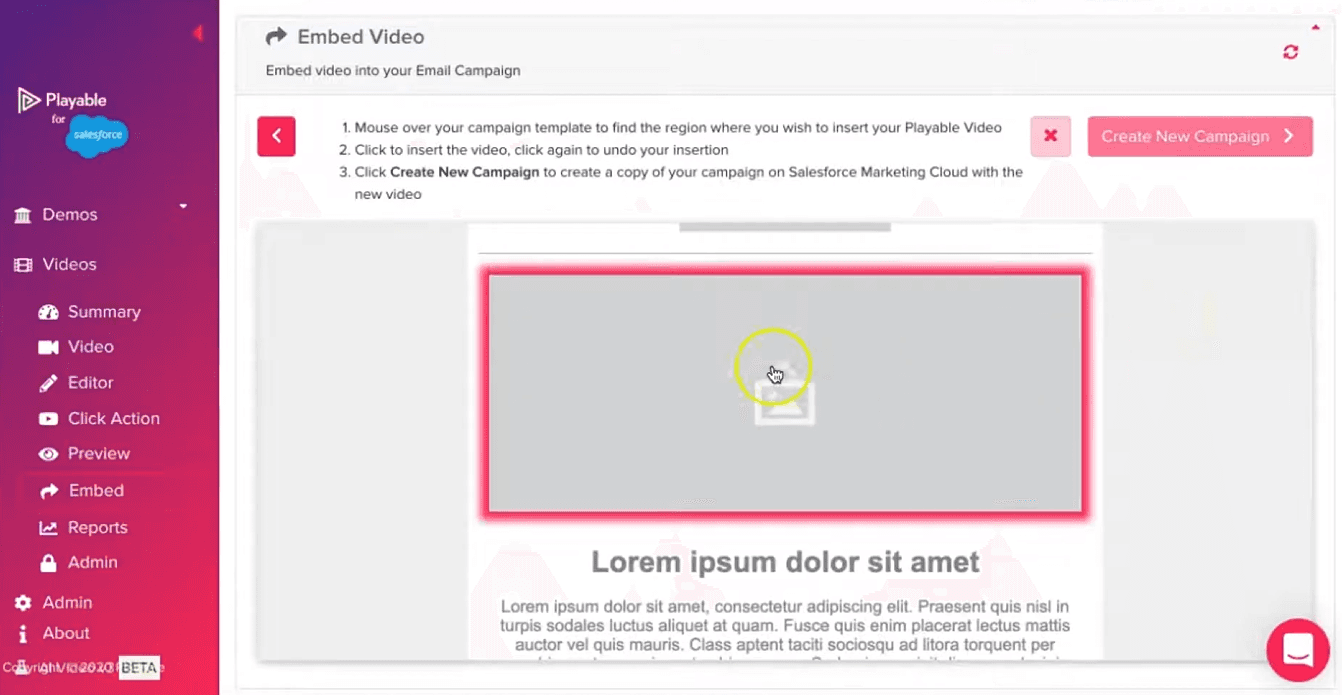
Click Embed and then Select Campaign. This campaign will be the same name as Video Title from Step 4.
The previous SFMC email template campaign will show. Hover over and click the specific image to replace it with the video.
Click on Create New Campaign to go back to the SFMC platform. Then click on Click to view your new campaign in Salesforce Marketing Cloud.
The video is now successfully embedded into a Salesforce Marketing Cloud email campaign.
How to Access Playable on SFMC AppExchange
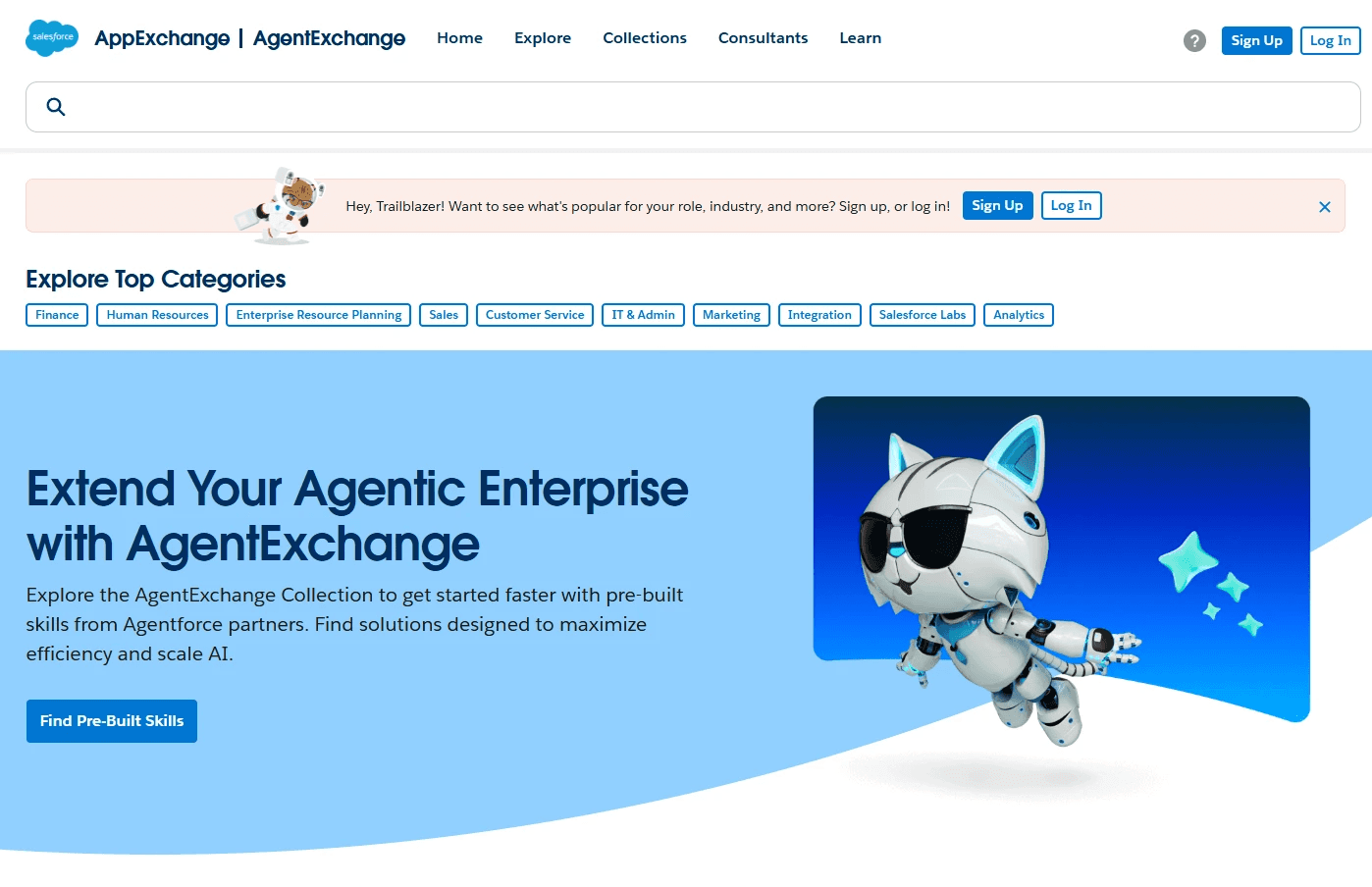
Log into Salesforce AppExchange
Log into the Salesforce AppExchange platform.
Click Log In and log in your account with your preferred way.
Install the Playable app
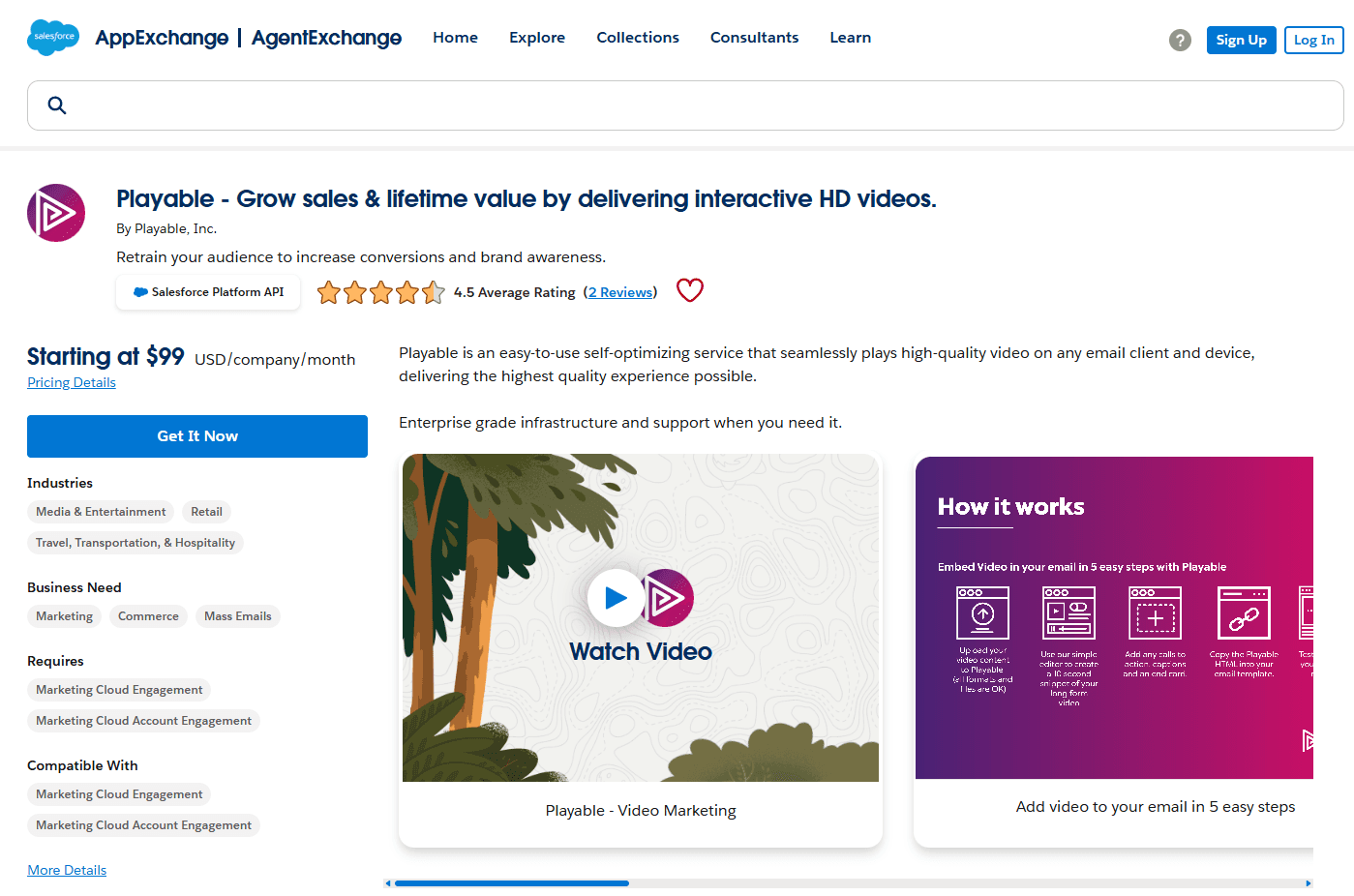
Find the Playable app listing by searching Playable.
Click Get It Now, then Install from Salesforce Marketing Cloud. and then Install.
Click Licenses and License All users. To restrict access to specific users, make sure the individual names are selected.
Use the Playable app
Refresh the page to see Playable added to the AppExchange menu. You can now add videos to your emails directly from the SFMC dashboard.
Learn more about adding videos to SFMC email campaigns here.
