How to Use the Beefree SDK Integration with Playable to Create Video Email Templates
Step-by-Step Tutorial
How to Embed Video to a Blank Email Canvas
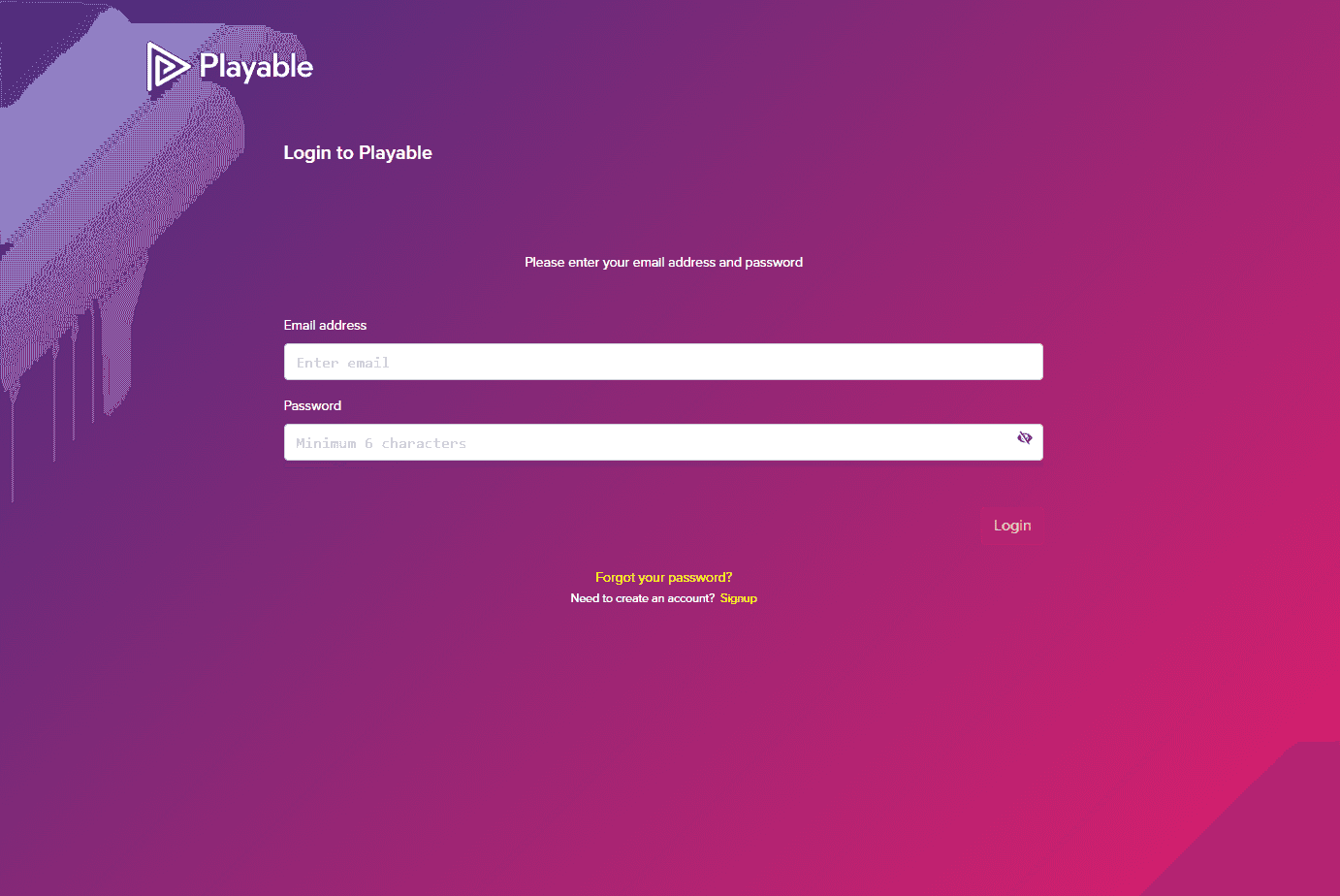
Log into your Playable account
In the Playable platform, log into your account. Fill out the following details:
Email address
Password
If you don't have an account, you can sign up for a free 7-day trial.
Upload the video you want to embed in the email
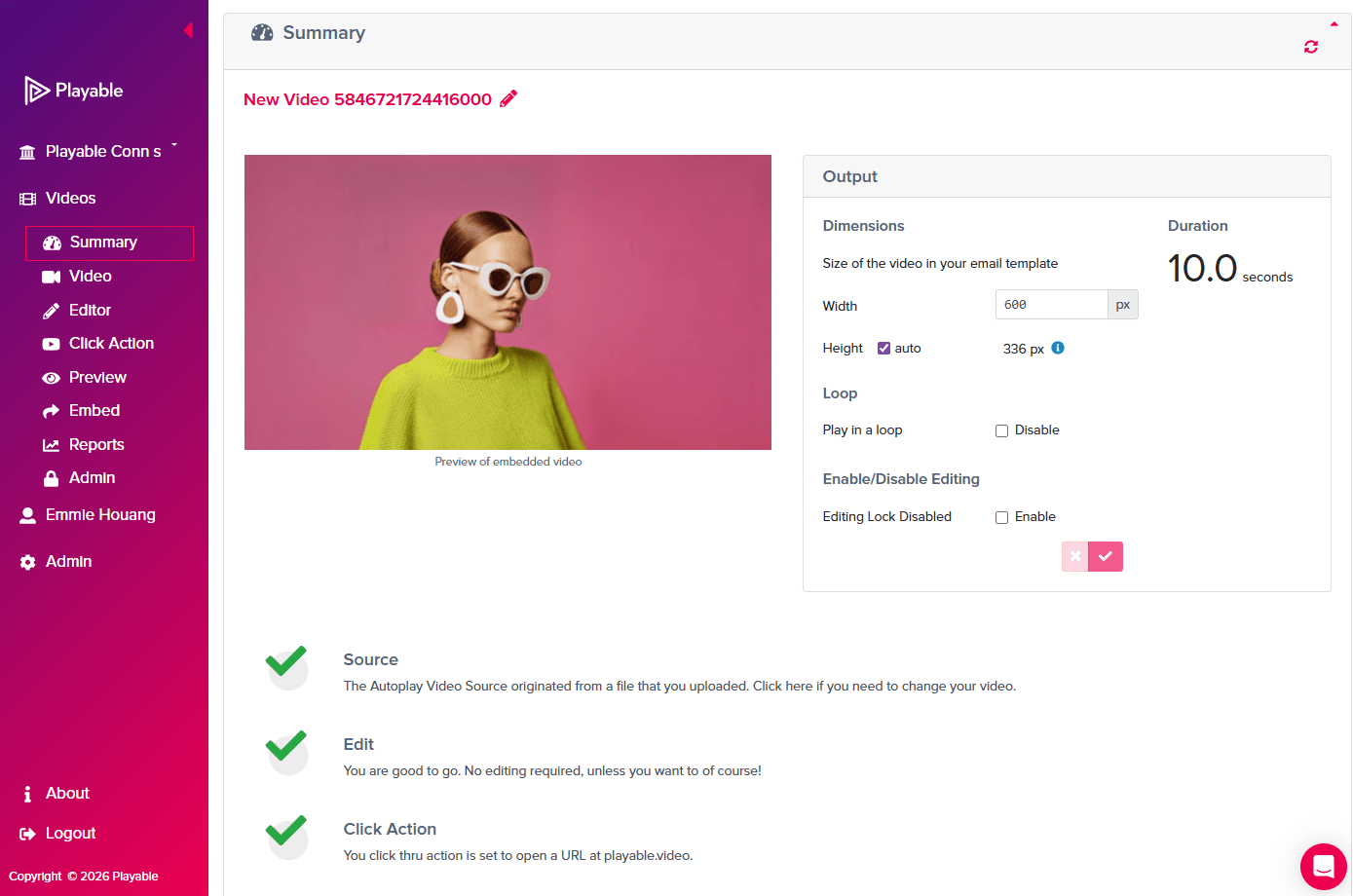
Once you have logged in, upload the video you want to add into the email:
Click Videos on the right
Click Add Video
Add a Video Title
Upload Video via computer, URL, or stock library
Once the video transcoding is finished, you can choose to edit your video dimensions, loop or enable/disable editing
Launch the Beefree editor from your Playable account
Click on the Beefree SDK logo to launch the Beefree editor and integration.

Select and start with the blank email canvas
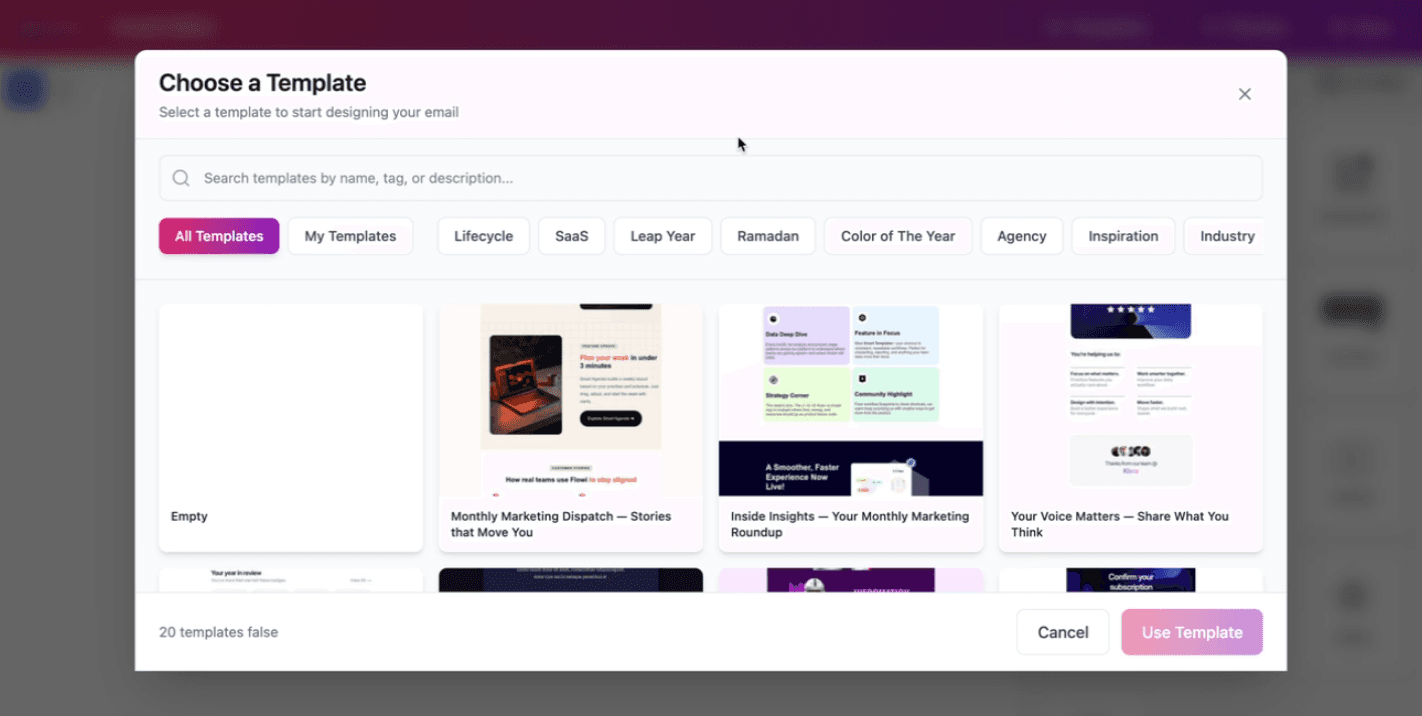
When the Beefree editor is launched from your Playable account, it will prompt you to Choose a Template from the Template Library.
If you want to start from scratch with a blank canvas, select the Empty Canvas.
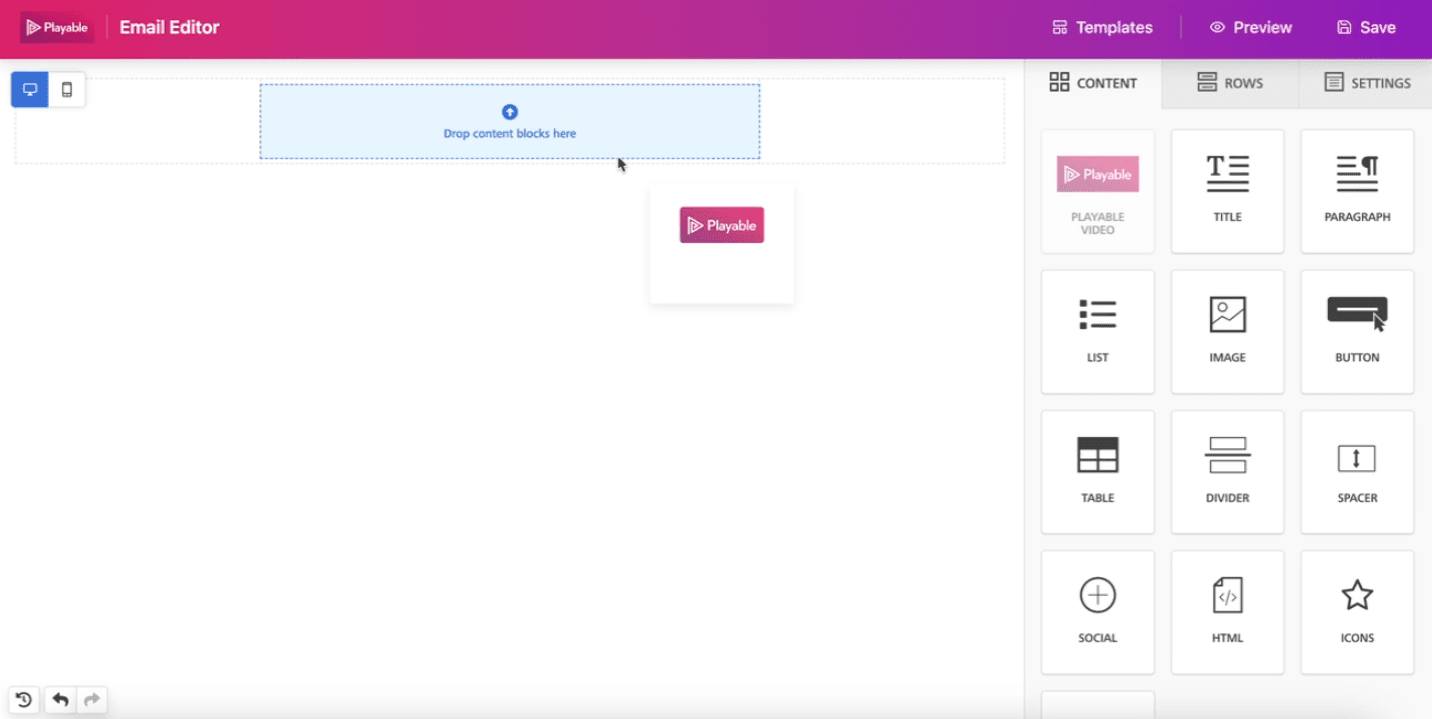
Drag-and-drop the Playable Content Block
To embed a video into your blank email , drag-and-drop the Playable Content Block into the canvas.
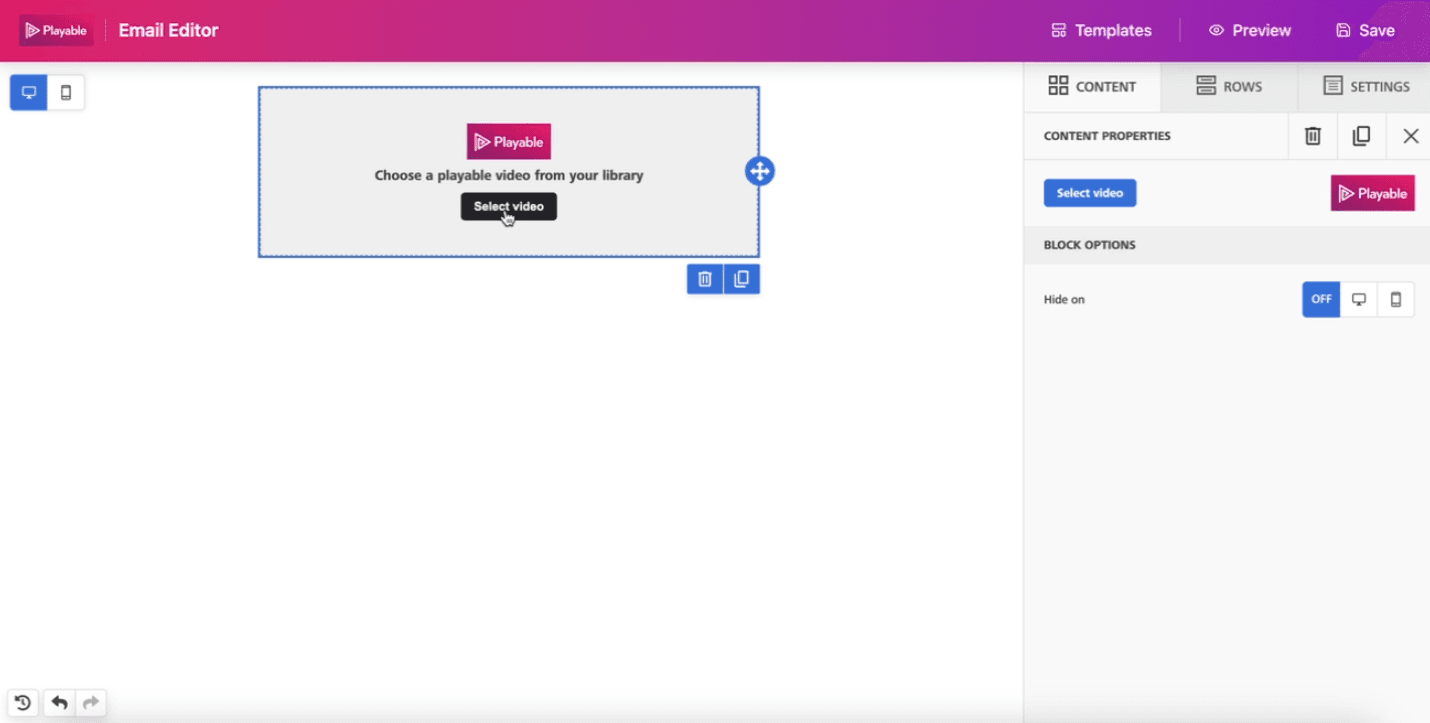
Select video in the Playable Content Block
In the Playable Content Block, click Select Video to upload your video into the block.
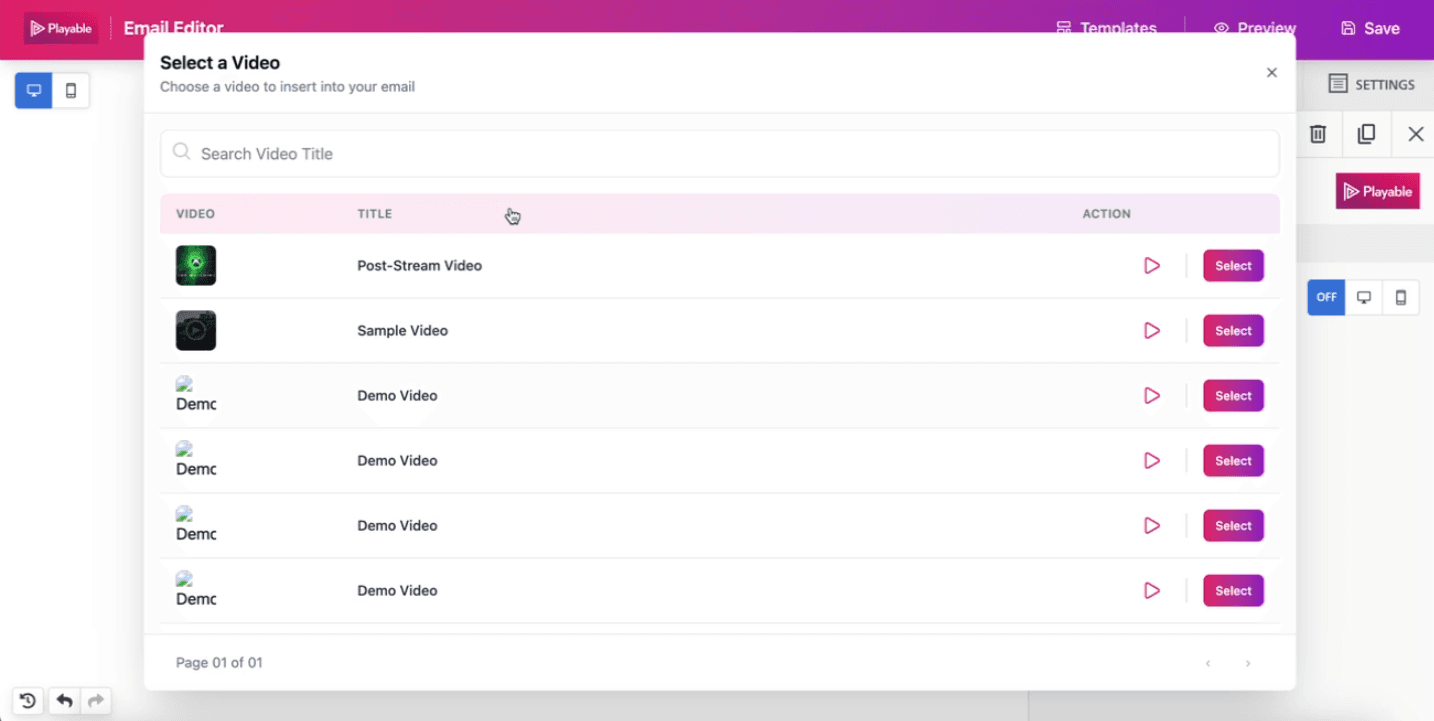
Find and select the uploaded video
This will prompt you to find your video either by Search or scrolling. You can also preview any videos by clicking on the Play symbol.
Once you have found your video that was uploaded on the Playable platform, click the Select button.
Confirm the selected video
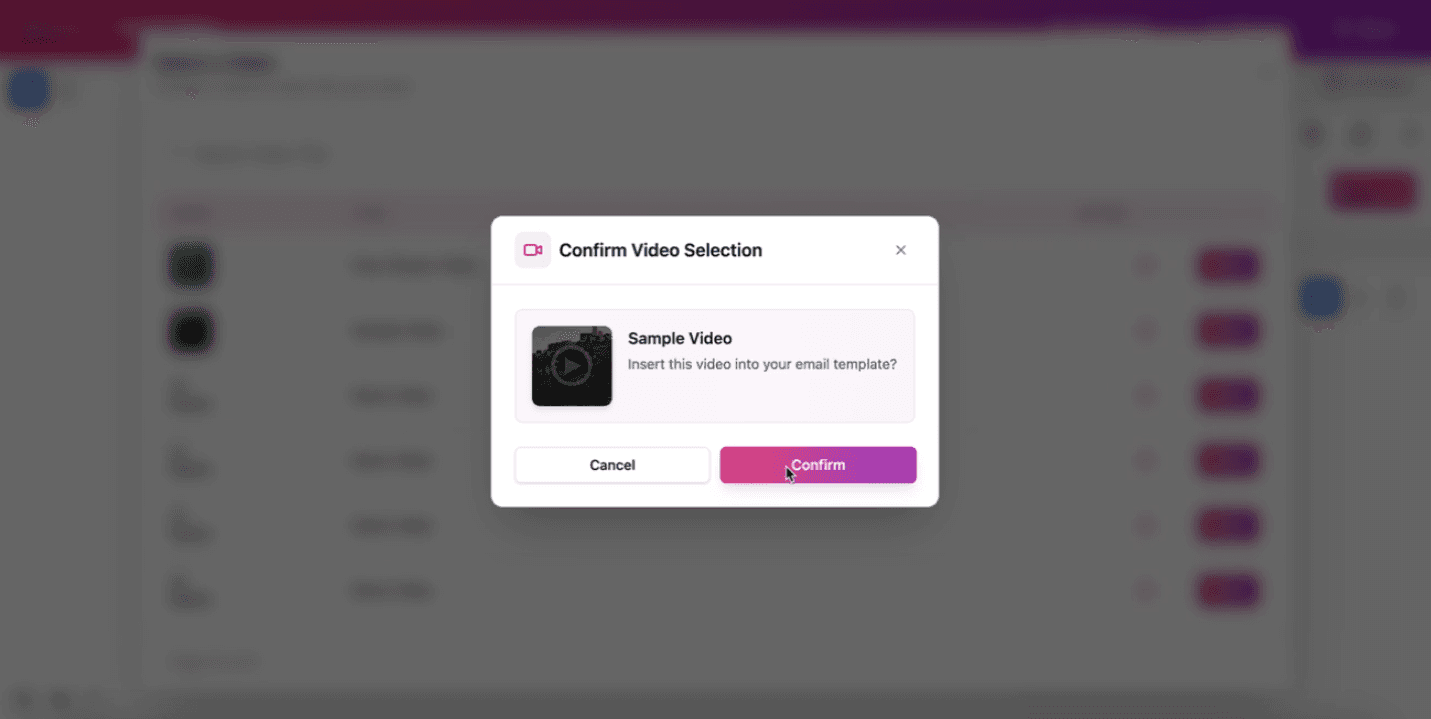
This will prompt a confirmation box. If it is the right video, click Confirm to insert the video into the Playable Content Block in the blank canvas.
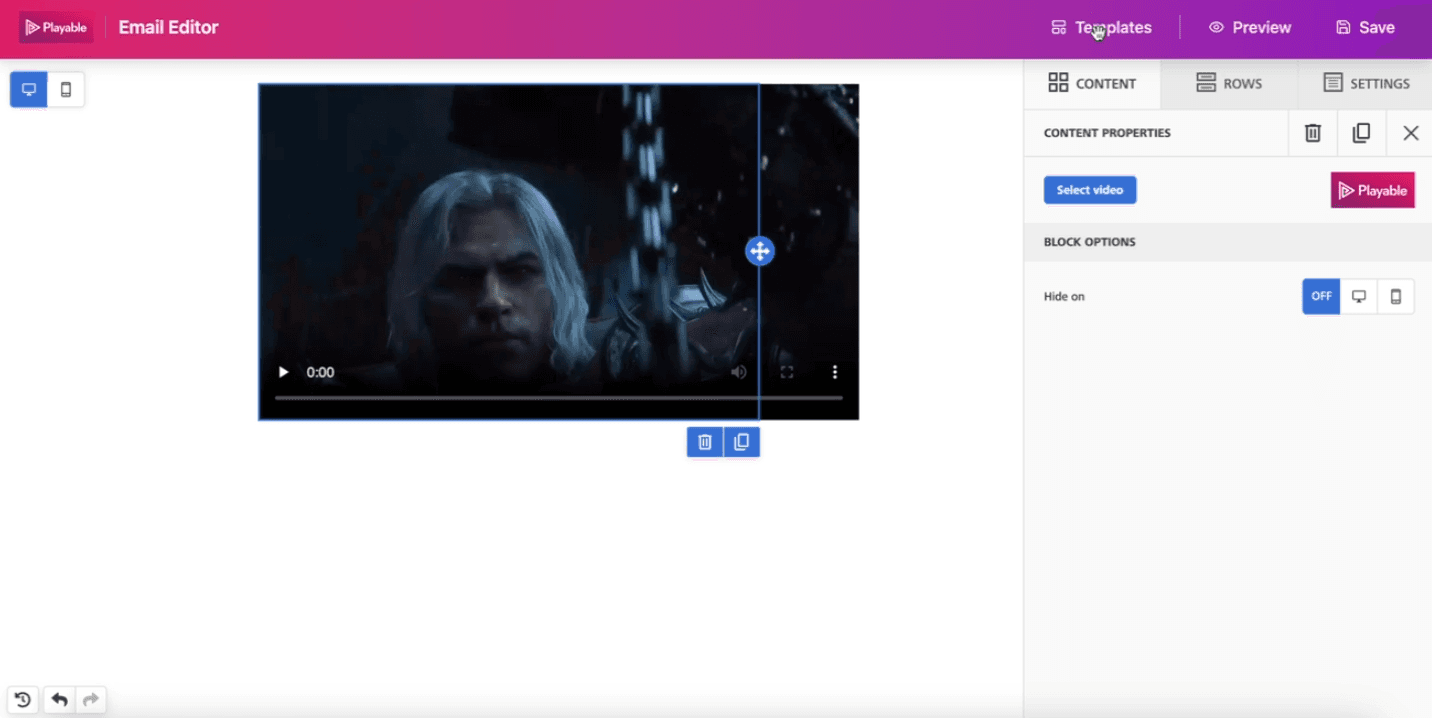
View the video on the canvas
The video is now embedded into the blank email canvas.
From here, you can make changes to add other content blocks like buttons, titles, spacers, and more.
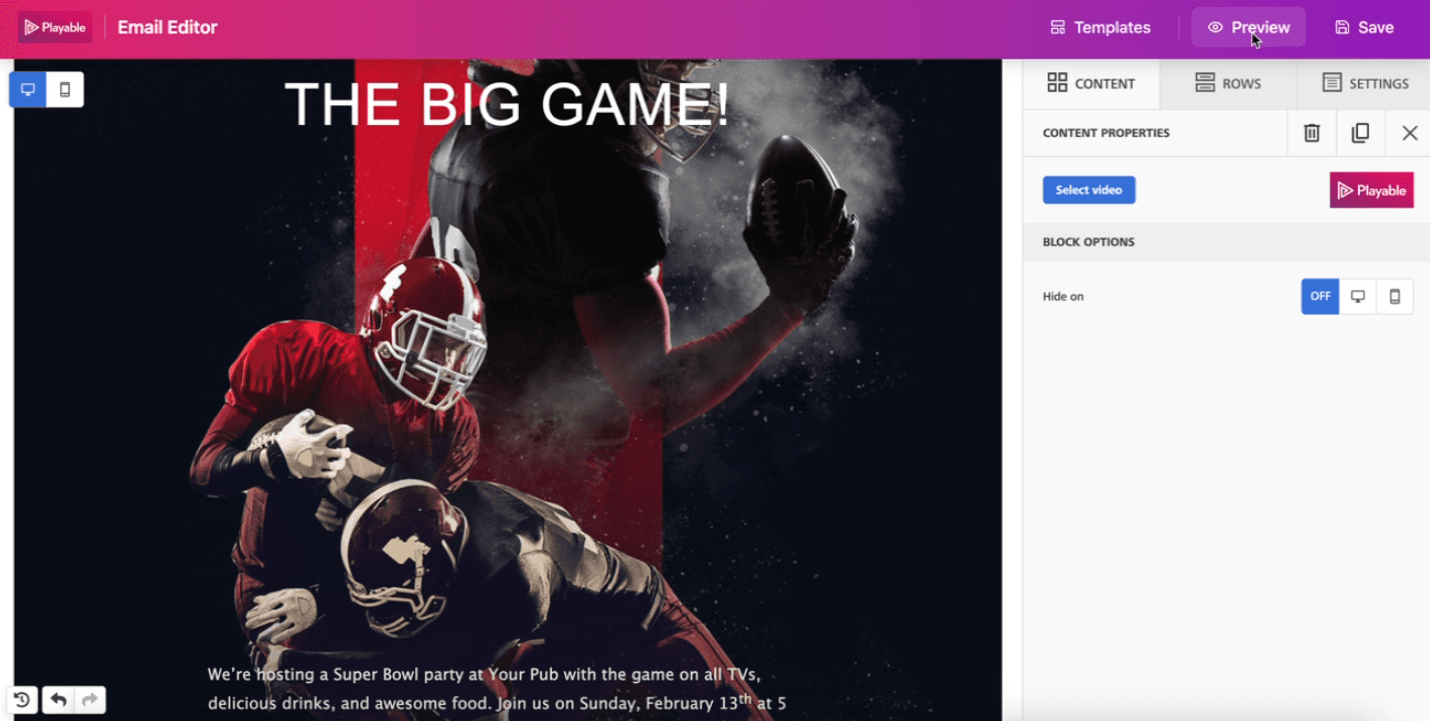
. Preview the email
Once you are happy with the video email, you can preview it by clicking Preview in the top right corner.
11. Test for accessibility and different device formats
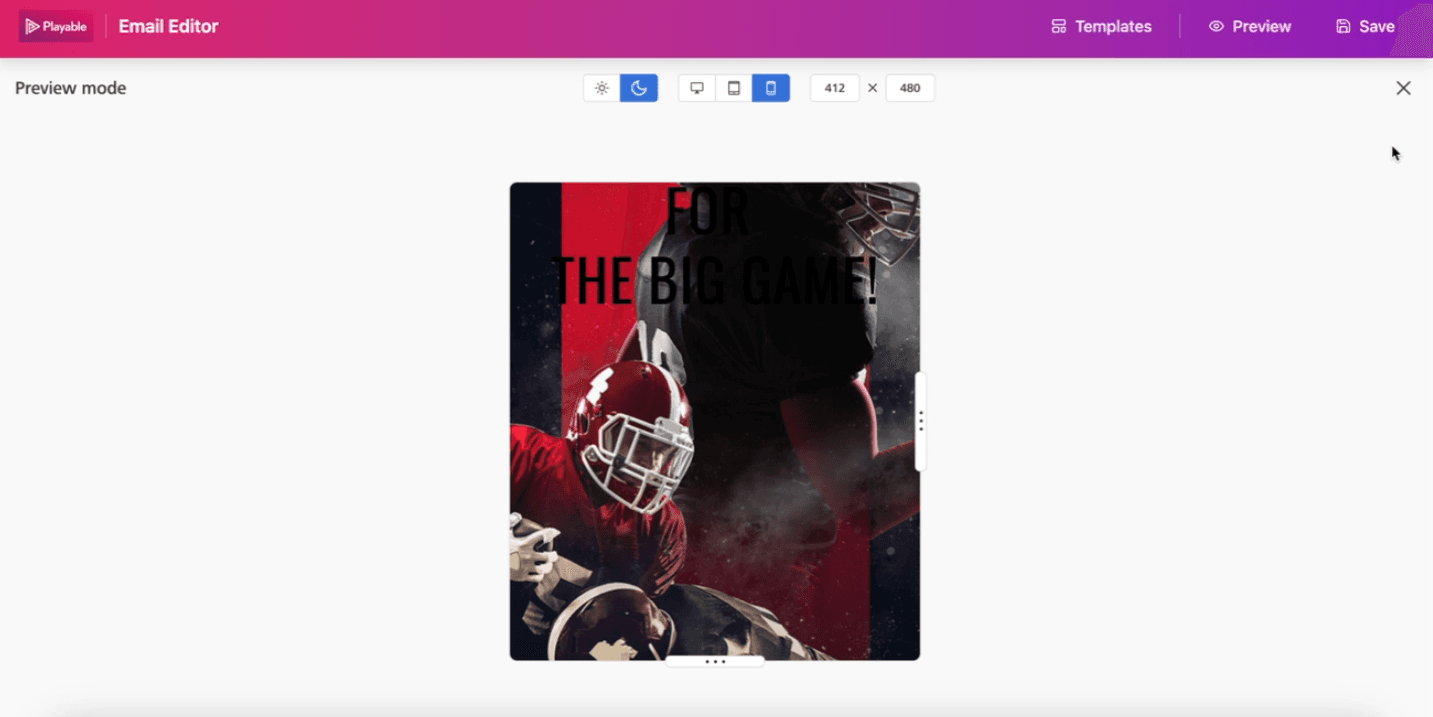
In the preview mode, you can test the video email for accessibility such as:
Light mode
Dark mode
Desktop format
Tablet format
Mobile phone format
Custom resolution and sizes
12. Save the email
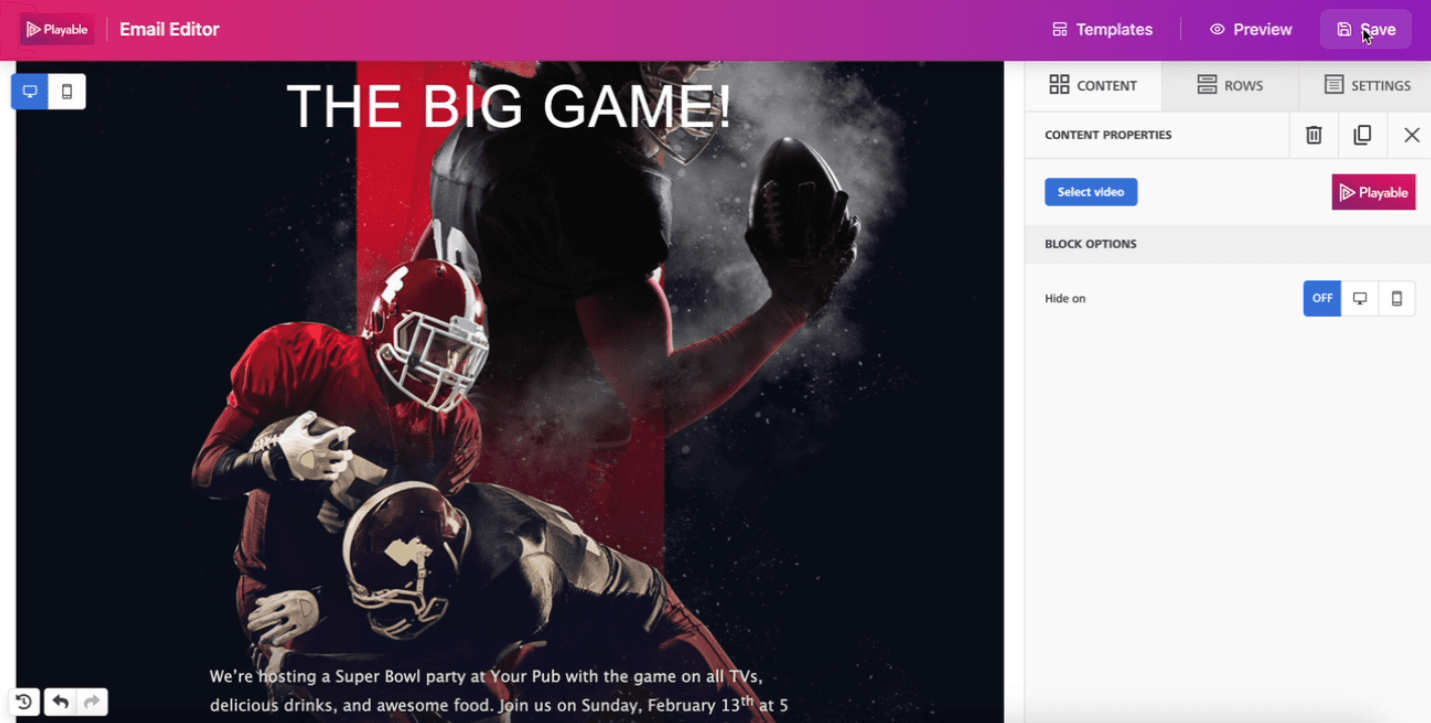
After previewing and testing the video email, you can save the email by clicking Save in the top right corner.
13. Enter template name and save video email template
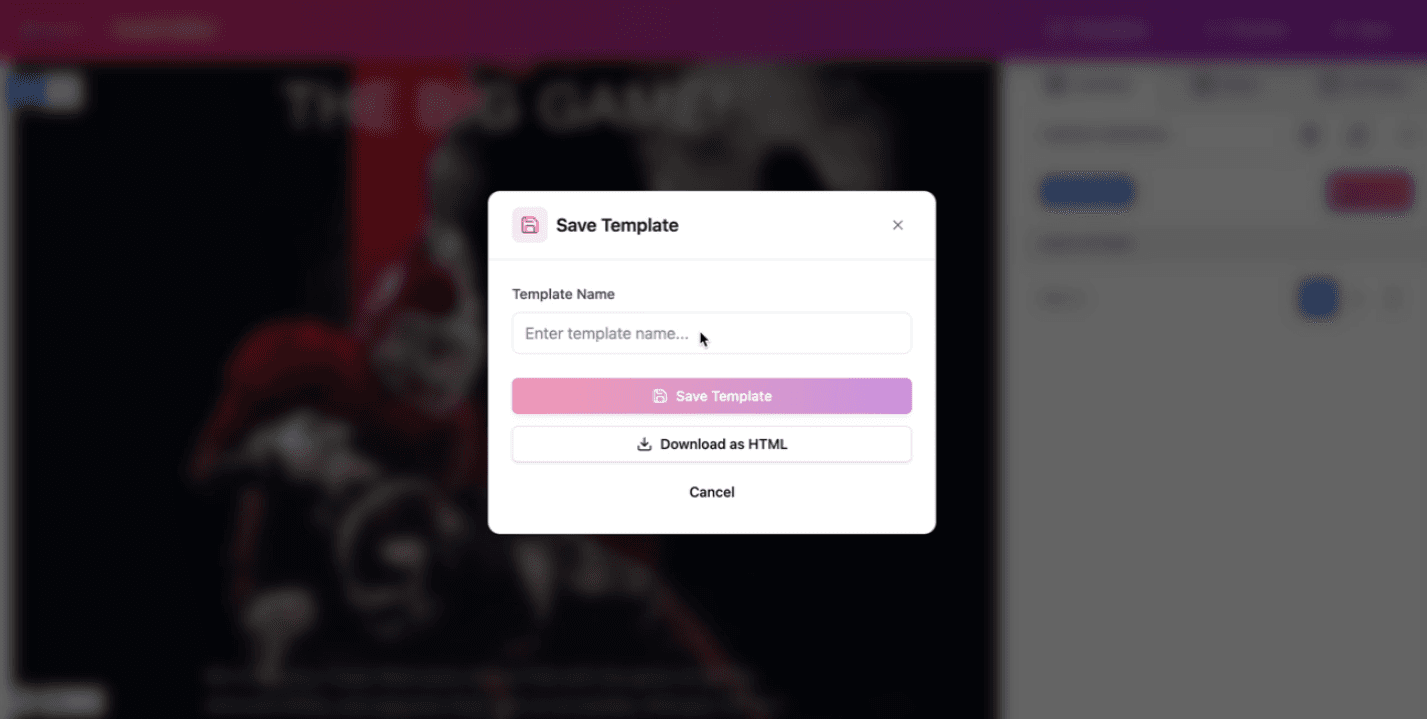
This will prompt you to name the email to save it as an video email template in your Template Library.
Enter a Template Name and click Save Template.
You also have an option to download the email as HTML.
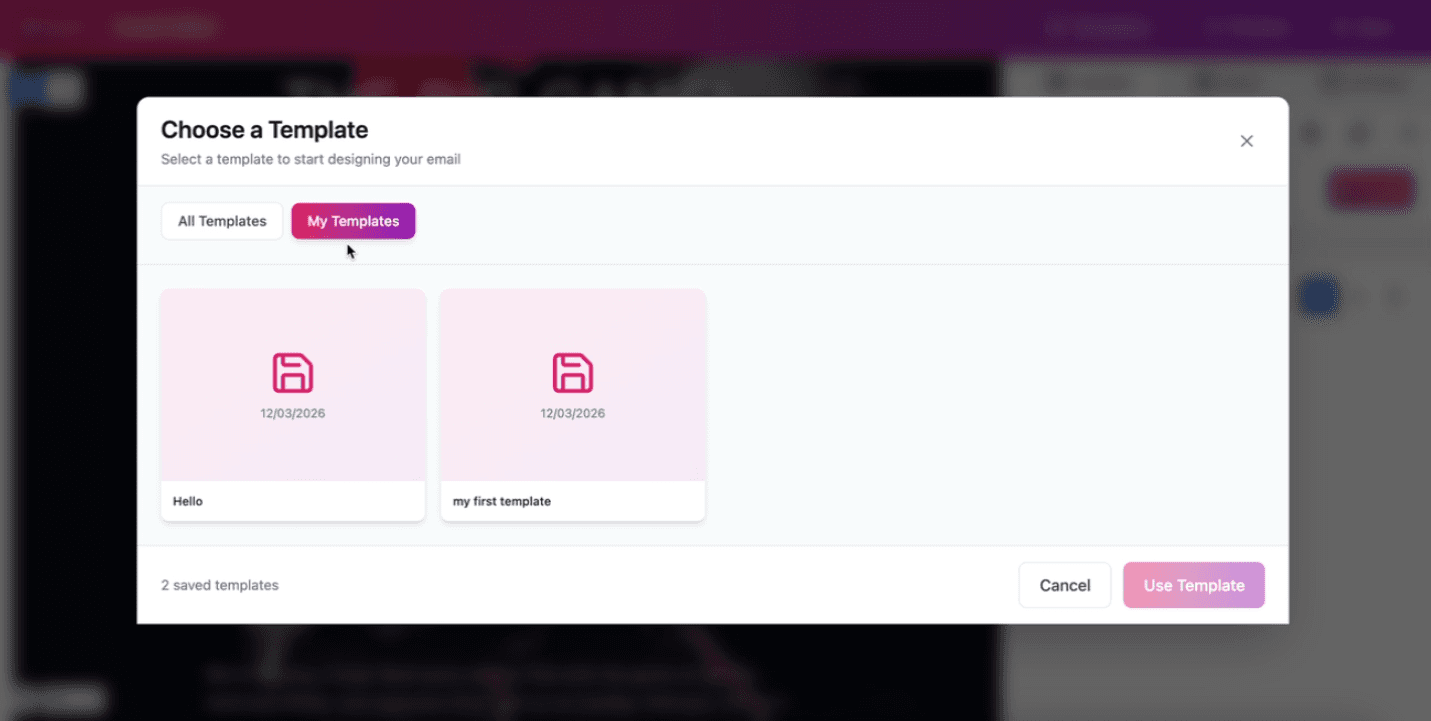
14. Re-use your saved video email template
Once the video email template is saved, and you want to re-use that specific template, click on Templates in the top right corner.
It will automatically open to All Templates. Click on My Templates and you can view and access your own saved video email templates from there.
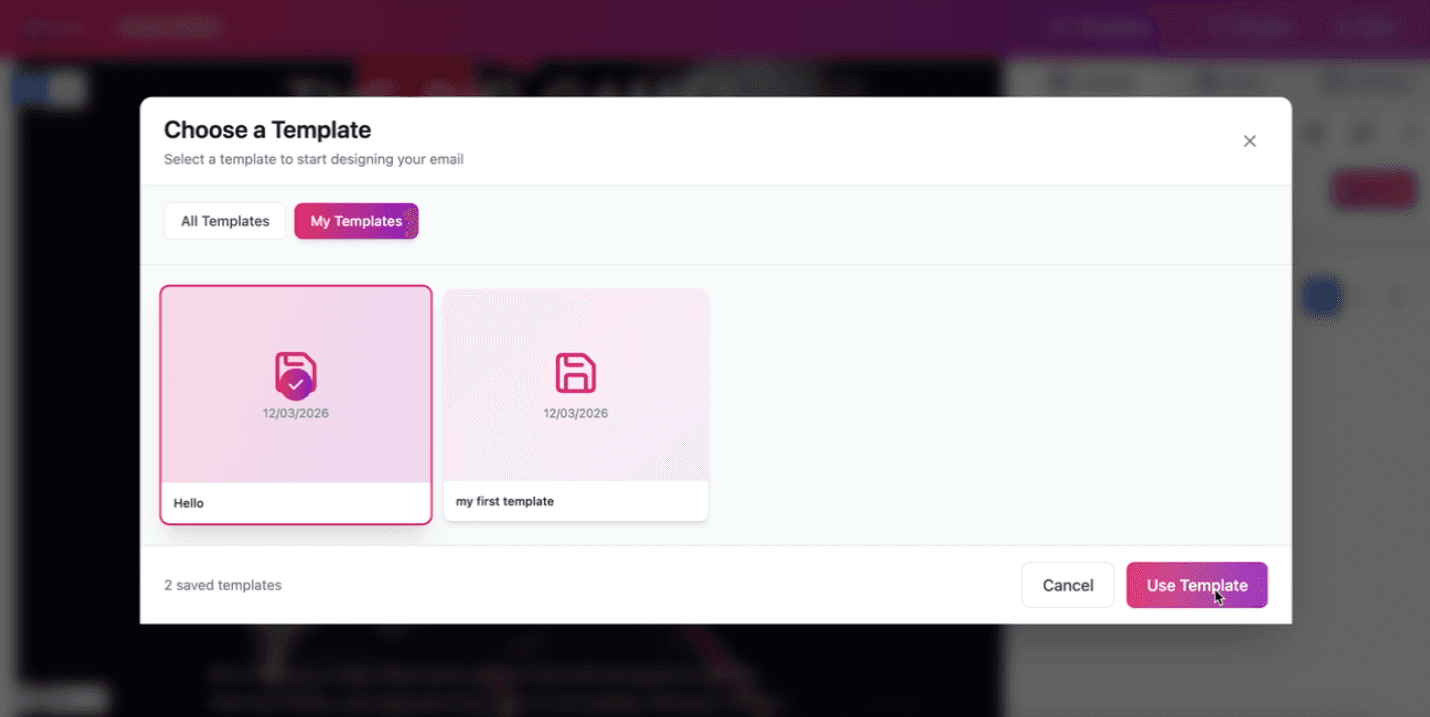
15. Use your saved video email template
Select your desired saved video email template and click Use Template.
How to Embed Video to an Existing Email Template
Log into your Playable account
In the Playable platform, log into your account. Fill out the following details:
Email address
Password
If you don't have an account, you can sign up for a free 7-day trial.
Upload the video you want to embed in the email
Once you have logged in, upload the video you want to add into the email:
Click Videos on the right
Click Add Video
Add a Video Title
Upload Video via computer, URL, or stock library
Once the video transcoding is finished, you can choose to edit your video dimensions, loop or enable/disable editing
Launch the Beefree editor from your Playable account
Click on the Beefree SDK logo to launch the Beefree editor and integration.
Select a ready-made email template
When the Beefree editor is launched from your Playable account, it will prompt you to Choose a Template from the Template Library.
You can search for an email template by:
Typing in the search bar
Scrolling in All Templates
Picking a template category
You can also preview the email templates by hovering over the template and clicking on the Eye symbol.
Drag-and-drop the Playable Content Block
To embed a video into your blank email , drag-and-drop the Playable Content Block into the template.
Select video in the Playable Content Block
In the Playable Content Block, click Select Video to upload your video into the block.
Find and select the uploaded video
This will prompt you to find your video either by Search or scrolling. You can also preview any videos by clicking on the Play symbol.
Once you have found your video that was uploaded on the Playable platform, click the Select button.
Confirm the selected video
This will prompt a confirmation box. If it is the right video, click Confirm to insert the video into the Playable Content Block in the template.
View the video on the canvas
The video is now embedded into the email template.
From here, you can make changes to add other content blocks like buttons, titles, spacers, and more.
. Preview the email
Once you are happy with the video email, you can preview it by clicking Preview in the top right corner.
11. Test for accessibility and different device formats
In the preview mode, you can test the video email for accessibility such as:
Light mode
Dark mode
Desktop format
Tablet format
Mobile phone format
Custom resolution and sizes
12. Save the email
After previewing and testing the video email, you can save the email by clicking Save in the top right corner.
13. Enter template name and save video email template
This will prompt you to name the email to save it as an video email template in your Template Library.
Enter a Template Name and click Save Template.
You also have an option to download the email as HTML.
14. Re-use your saved video email template
Once the video email template is saved, and you want to re-use that specific template, click on Templates in the top right corner.
It will automatically open to All Templates. Click on My Templates and you can view and access your own saved video email templates from there.
15. Use your saved video email template
Select your desired saved video email template and click Use Template.
