How to add video to Marketo email campaigns with Playable
Step-by-Step Tutorial
Prepare Your Email Template In Marketo
Create a new email in Marketo
Create a new email campaign in Marketo.
Chose a Template, add a Subject Line, select your List, and complete all the steps to design your first video email.

Import Your Video Into Playable

Create your Playable account
If you are new to Playable, you need to create a new account.
Once you create an account and are logged into Playable's dashboard, click Videos.
Adding a new video
To add a new video to embed in your email, click +Add Video.


Upload your video to Playable
Create a title video to easily locate it later. Enter the size width of the video or keep the optimum size suggested
There are 2 options to upload your video:
Copy and paste video URL: Playable accepts videos from major hosting platforms such as Vimeo, Brightcove, and Loom.
File upload: Upload a video file from your device, including .MP4, AVI, and MOV file formats.
Once you have selected your video, click Apply to upload your video file.
Edit your video email
Once you have configured your video, you can edit your video in the Editor.
The Editor will enable you to create a video clip from the full-length video which will be played in your video email. You can choose to:
Crop the video clip
Change video duration
Select multiple scenes or frames
Preview your edits
Once you are happy with your edit, click Continue.

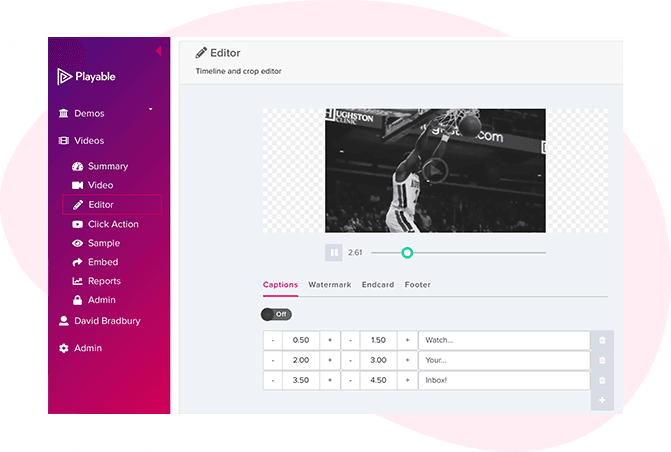
Enhance your video email
You can also add video enhancements, including captions, watermarks, an endcard or a footer.
Once you are happy with your video clip, click Compile to continue. Playable compiles the video clip to create multiple versions, ensuring each recipient receives an optimized video most suitable for their device, bandwidth, and connection.
Add a Call-to-Action (CTA) link
Navigate to Click Action to add a CTA link to the video.
Choose the option to Open URL on device and paste the URL link of the landing page to redirect recipient once they click on the video in the email.


Preview and sample your video email
Preview your video email in major email clients by using the drop-down above the preview window.
You can also send a sample of your video email for review.
Click Sample
Complete the form
Click Send
Once you are happy with the sample, click Embed.
Your email video is now created
Your video is now successfully compiled so now you can add the video to your email template.
The first step is to copy Playable’s HTML Embed Code into Marketo.

Copy the Embed Code from Playable

Embed the video into your Marketo campaign
To embed the video into your campaign, select Marketo from the drop-down list of email providers.
The HTML Embed Code, optimized for Campaign Monitor emails, will appear below. Click Copy to Clipboard to copy the entire embed code to use in your Marketo email.
Paste the Embed Code into Marketo
Paste the HTML into Marketo template
Return to your Marketo email template from the previous step.
Click Edit Code and paste Playable's HTML Embed Code into the HTML Code Block.
Then click Save Changes and continue.


Preview and sample your video email
Once you save the HTML, you can Preview your email template to view the playing video.
Design, test, and send your campaign using Marketo
Test and send your video email
Your video content is now embedded in your email template in Marketo.
You can test and send the email before launching the campaign.

