How to add video to Mailchimp email campaigns with Playable
Step-by-Step Tutorial
Prepare Your Email Template In Mailchimp
Log into your Mailchimp account
Once logged in, set up a new email campaign:
Click Create Campaign on the right side of the page
Click Create An Email
Choose Regular Campaign type
Enter Campaign Name
Click Begin
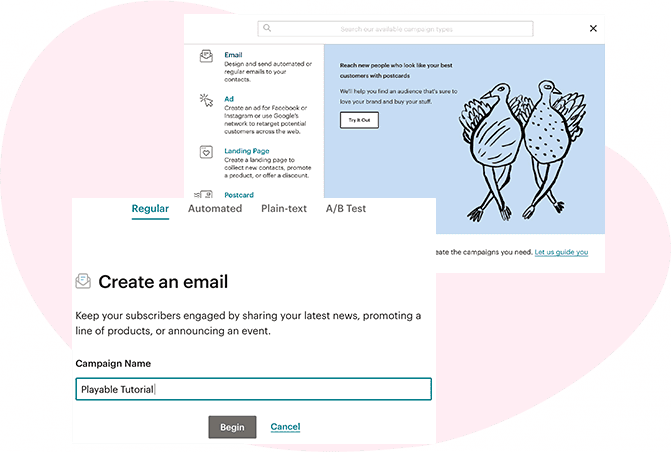
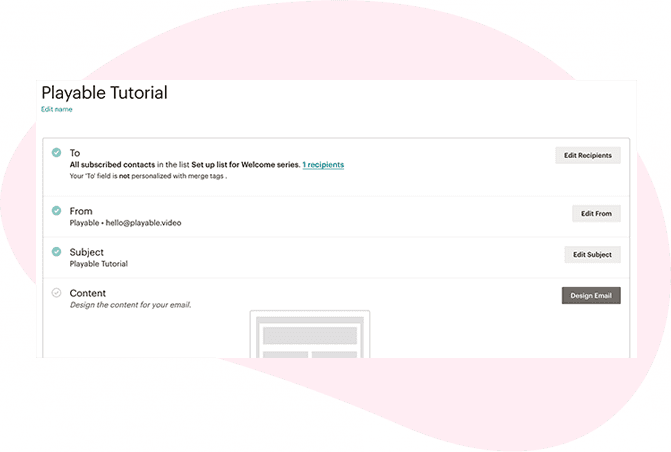
Set up Mailchimp campaign
Select Recipient List for this email campaign.
Complete the fields to configure the campaign details, including Campaign Name, Subject Line, Preview Text, and From Name.
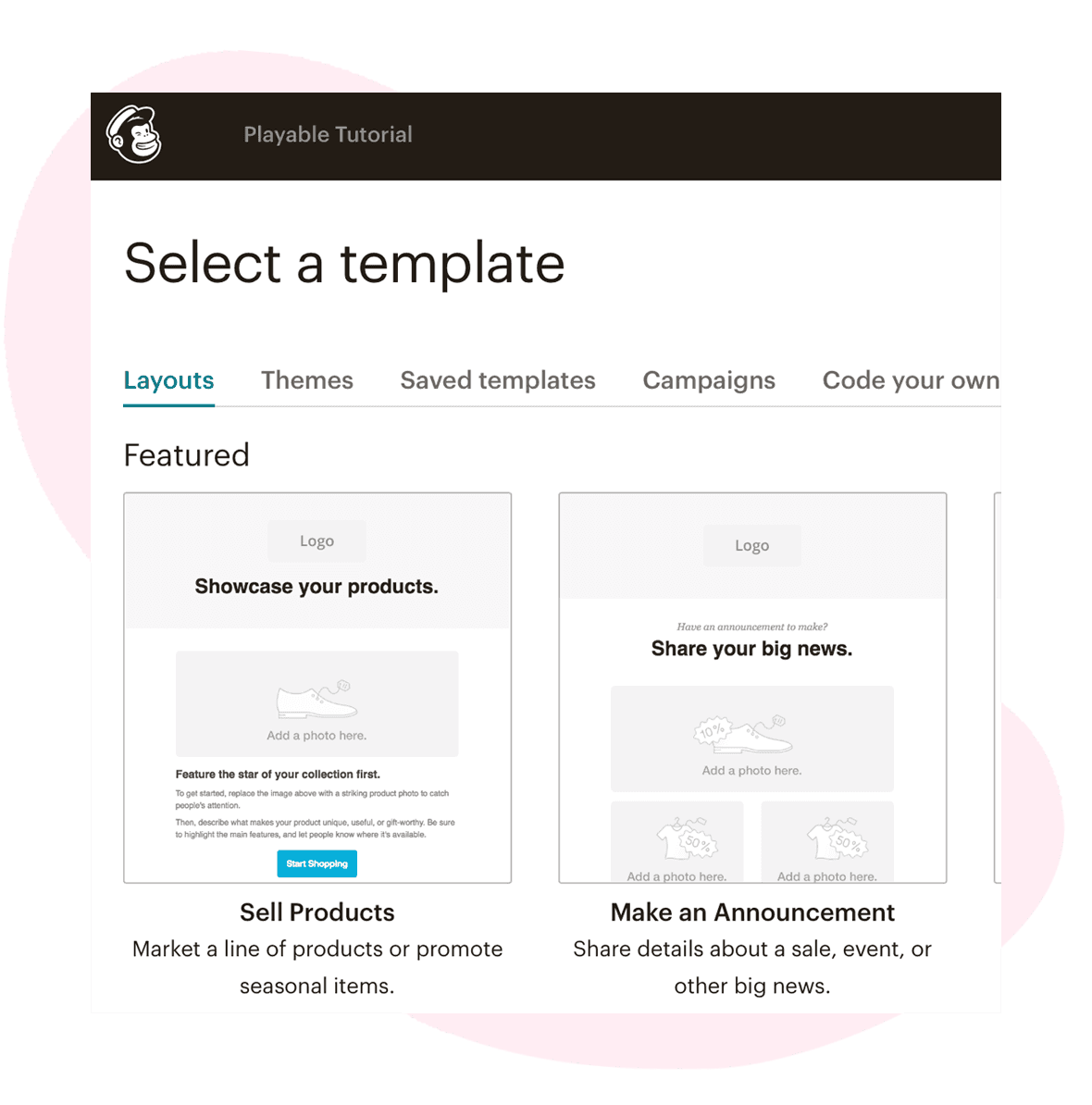
Select template for the video email campaign
When selecting your template, consider where your video will be positioned.
Select a Mailchimp template from Layouts, Themes, Saved Templates, and Campaigns.
Make your selection and click Next Step Design.
Tip: We find placing the video at the top of the template is most effective to drive audience engagement and post-click activity.
Add content to your template
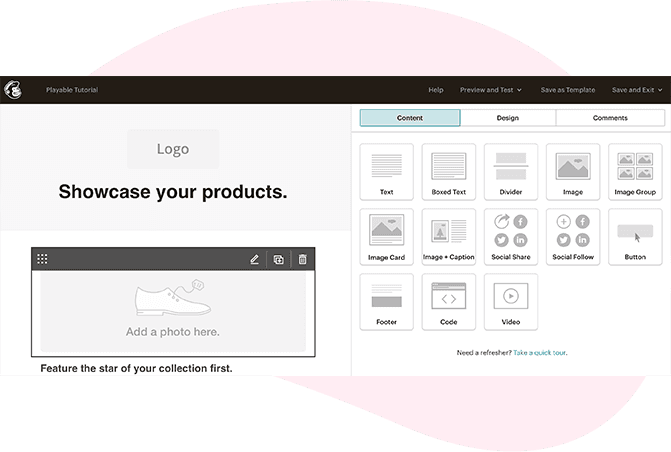
Add your content using the Classic Mailchimp Editor.
After deciding the video position in the email, add an Image Block in that position as a placeholder. You could also use one of the Image Blocks already in position within the preset templates.
This Image Block Placeholder will be replaced with your video.
Once you have finished adding content, click Save & Close.
Import Your Video Into Playable
Create your Playable account
If you are new to Playable. you need to create a new account.
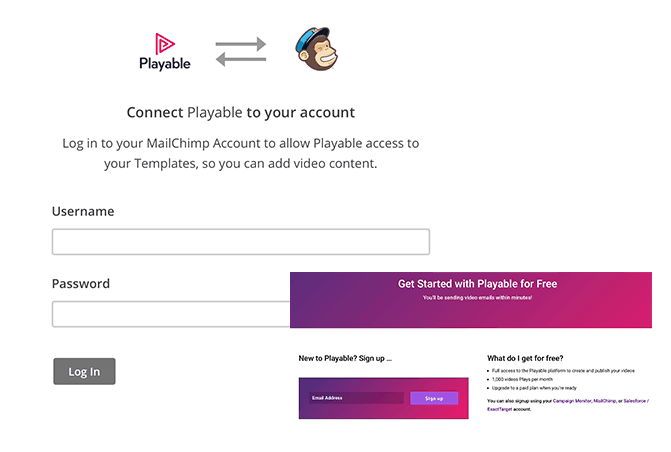
During sign-up, connect your Mailchimp and Playable accounts. This enables access to your Mailchimp templates via Playable, making it easier and faster to create video email campaigns.
Your Playable account
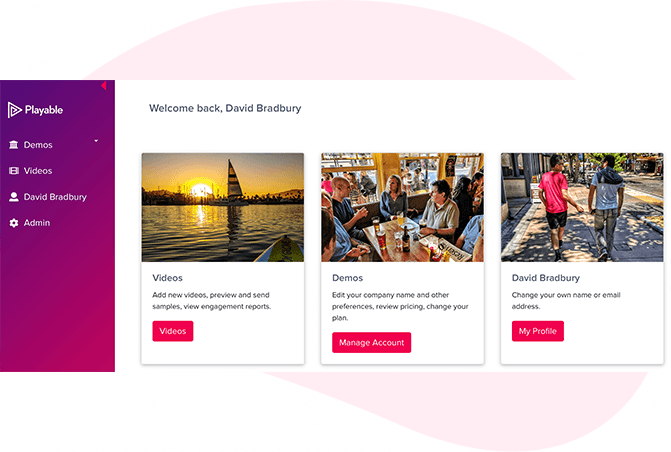
Create a new video email from the Playable homepage.
Click Videos on the left.
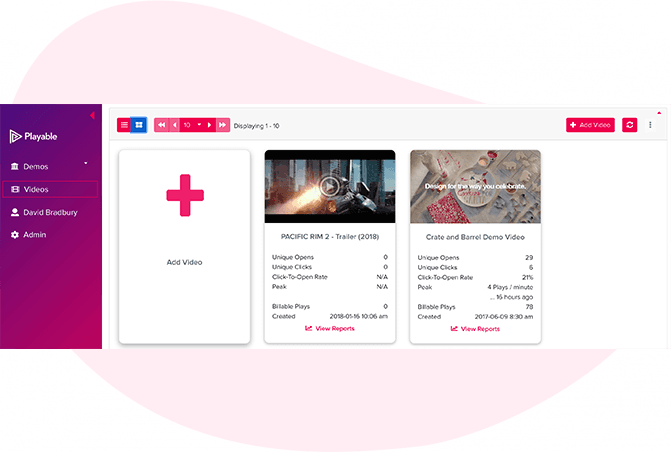
How to add a new video
After clicking on Videos, click on +Add Video to add a new video.
Upload your video to Playable
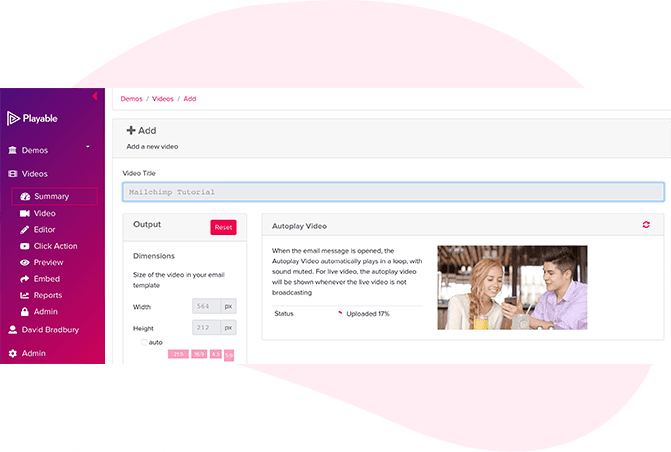
Create a title for your video.
Enter the size (width) of the video or keep the optimum size suggested by Playable. You can reference the dimensions of the image placeholder from the Mailchimp template.
You have 2 options to upload your video content to Playable:
Copy and paste video URL: Playable accepts videos from hosting platforms, including YouTube, Vimeo, and Brightcove.
File upload: Upload a file from your computer. All video formats are accepted, including MP4, AVI, and MOV.
Once you have selected your video, click Apply to upload.
Automatic video preview
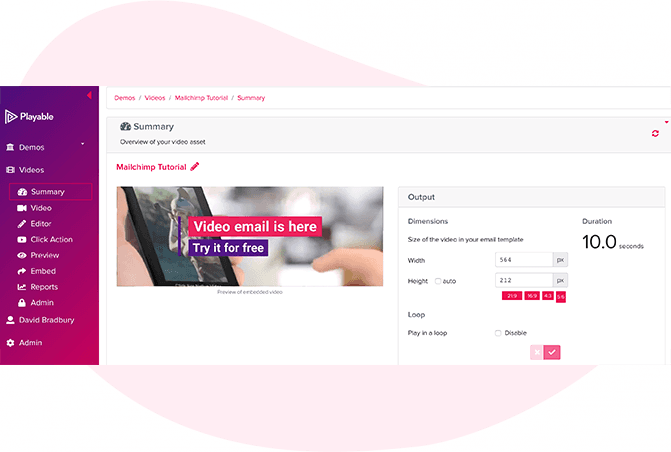
As your video is bring uploaded, Playable creates a 10-second preview. You can choose this version or create your own version using our Online Editor by selecting Editor.
Once you are happy with the video preview, select Click Action to continue preparing the video.
Edit your email video
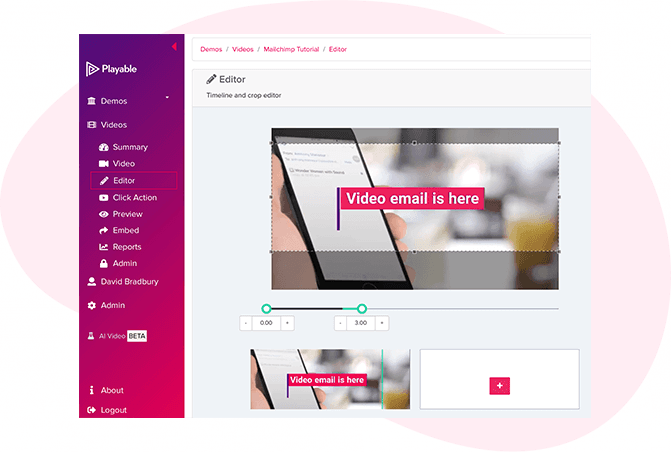
Once your video is configured, your video can be edited by selecting Editor.
Our Online Editor enables you to create a video clip from the uploaded video. This edit will be played in your video email. In the Editor, you can crop the video to focus on key content and select multiple scenes to change the video duration.
As you are creating your video email, the Editor will show the total duration, preview edits, and able to re-edit. Once you are happy with your edit, select Continue.
11. Enhance your email video
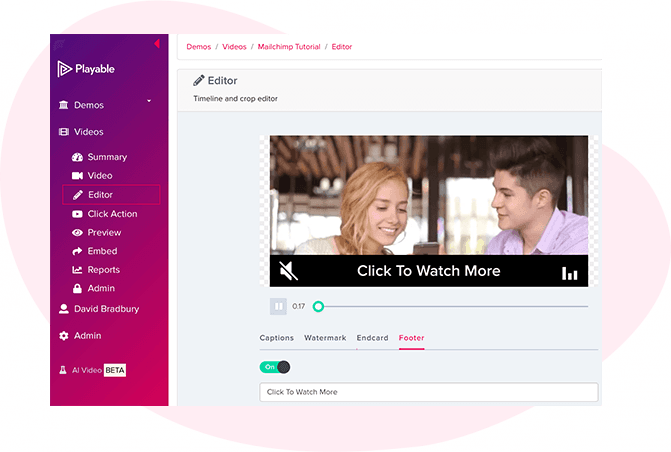
You can add enhancements to your video, including Captions, Watermark, End Card, or Footer. Select the enhancement and follow the on-screen prompts to add to your video.
Once you have completed creating your video clip, select Compile to continue. Playable complies the video to create multiple versions to ensure each recipient receives an optimized video suitable for their device, bandwidth, and connection.
12. Add a Call-To-Action (CTA) Link
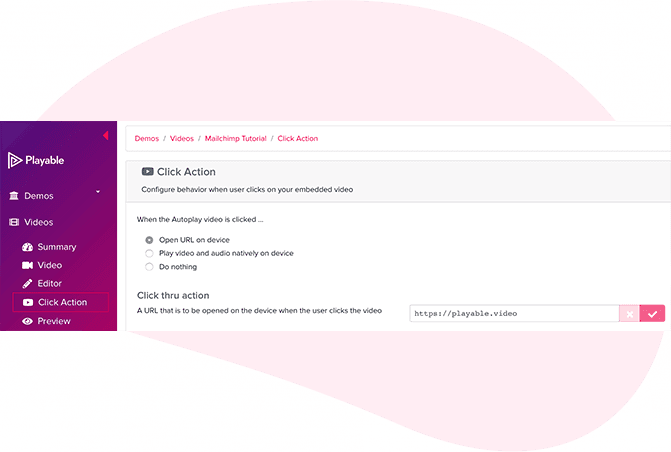
As the video is playing in the email, you can add a Call-To-Action (CTA) link to the video.
To set your Click Action, add the URL link of the destination page you want users to to be re-directed to, and save it.
13. Preview and sample your video email
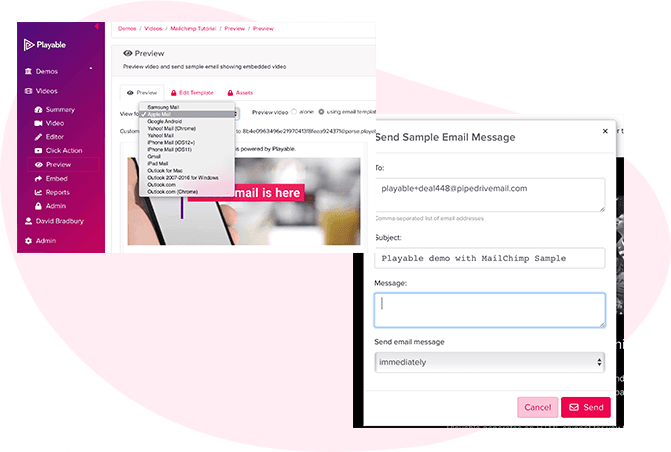
Preview your video email in email clients by using the drop-down above the preview window.
You can test the video email by sending a sample to your email address. Select Sample, complete the form, and select Send.
Once you are happy with the sample, select Embed to continue.
Copy The Embed Code From Playable
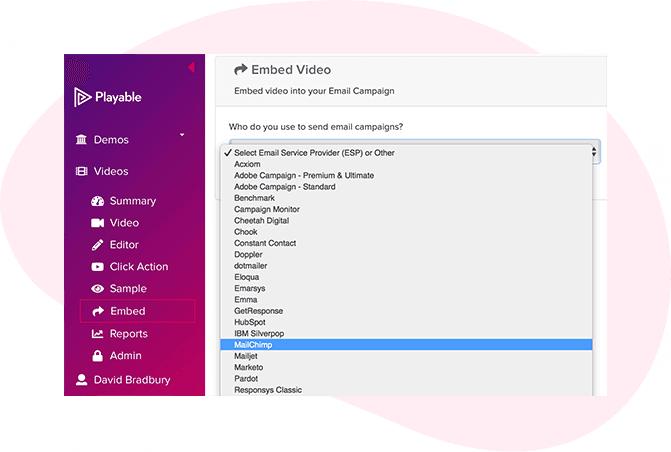
14. Embed the video into your Mailchimp campaign
To embed the video into your email template, select the Embed page under Videos, and select Mailchimp from the drop-down list of email providers.
The HTML Embed Code, optimized to Mailchimp, will appear below. Always use the latest Embed Code to ensure all changes made to the video and settings are applied.
There are 2 options to embed the video into your Mailchimp email template:
Select Copy to Clipboard, and paste the Embed Code into a Code Block in your Mailchimp email template.
If you have connected your Mailchimp and Playable accounts using the API Key, click Select Campaign.
Paste The Embed Code Into Mailchimp
15. Use the API Key to link your Mailchimp account
You can skip this step if your accounts are already linked.
To use the API Key to link your Mailchimp account:
On the Embed page in Playable, you will be prompted to add your Mailchimp API Key.
In your Mailchimp account settings, select Extras, then API Keys.
Select Create A Key to generate the API Key and name it Playable.
Copy the API Key and paste it into the empty field in Playable's Embed page and Save.
A new Select Campaign will appear to access your Mailchimp templates.
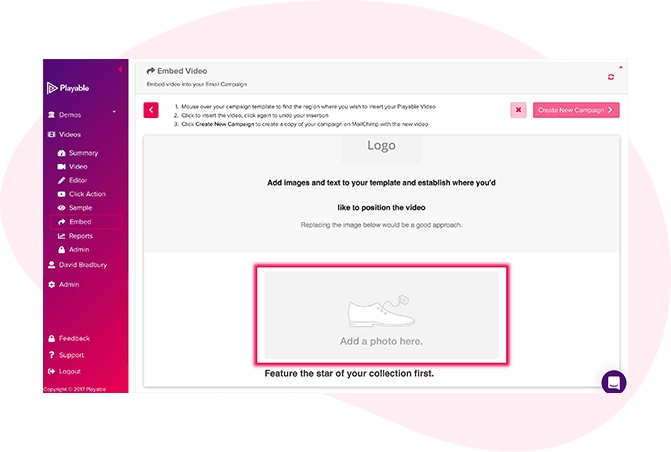
16. Add videos to your template
Click on Select Campaign to see a list of your most recent Mailchimp templates. Select the campaign with the Image Block Placeholder, based on previous steps.
Click the Image Block Placeholder to replace it with your video.
Tip: Any email block that has a glowing red border when hovering over it can be replaced with a video.
Continue To Design, Test, And Send Your Campaign Using Mailchimp
17. Create a new video campaign
If you are happy with what you see, select Create New Campaign.
To publish this template with your embedded video to Mailchimp, select Click To View Your New Campaign in Mailchimp.
Tip: You will need to be logged into Mailchimp to move to the next step.
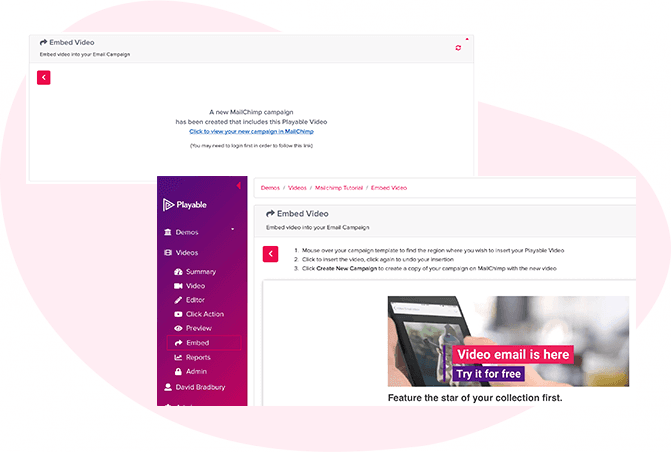
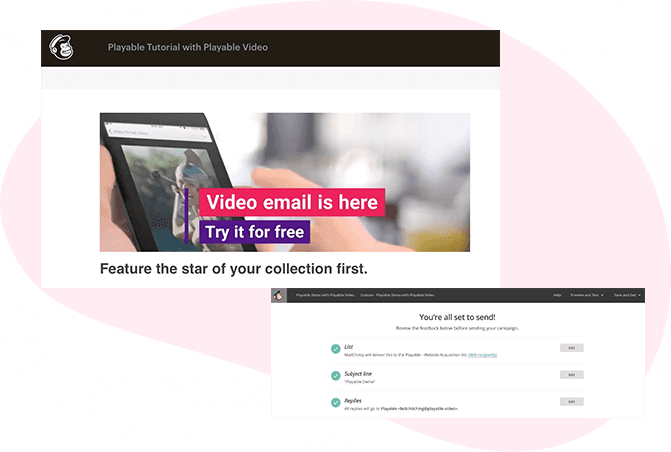
18. Preview your video email and prepare to send
Preview your new video email campaign in Mailchimp's dashboard.
Add your recipient list and test email addresses. Proceed to test and you're ready to send your video email campaign live.
