How to add video to:
Emarsys email campaigns with Playable
Step-by-Step Tutorial
Prepare Your Email Template In Emarsys
Create an email in Emarsys
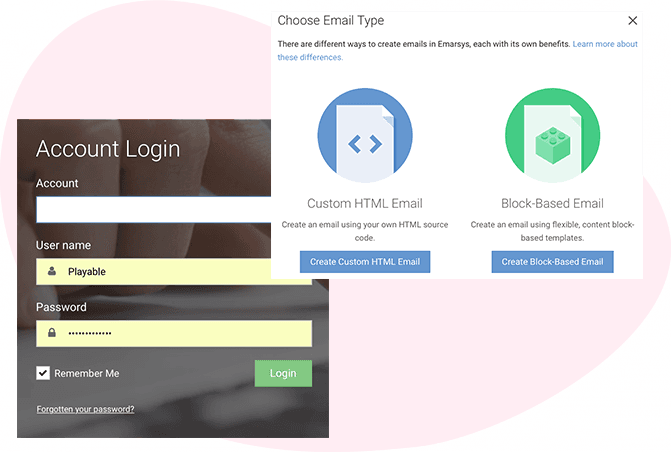
Log into your Emarsys account.
Create an email campaign using the Custom HTML Email.
Create your video in Playable
Create the video content to embed in your Emarsys email.
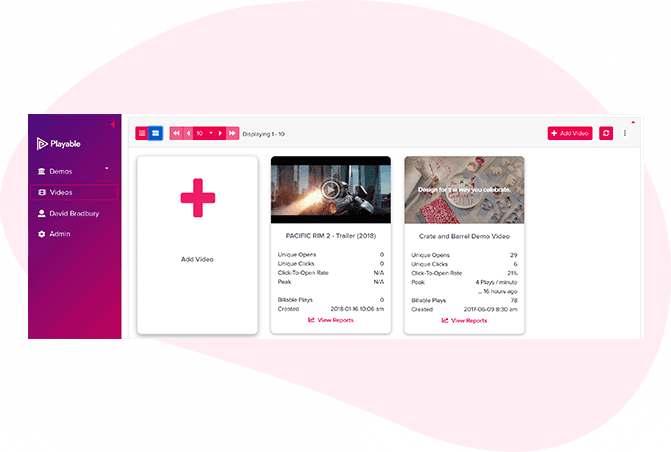
Select Add a Video to commence the video uploading process.
This video library stores all uploaded videos in Playable. If it is your first time using Playable, then you will need to add a video.
Import Your Video Into Playable
Upload your video to Playable
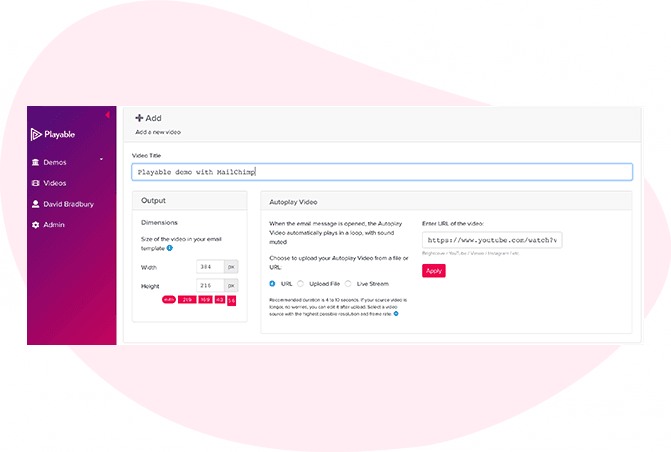
Create a title video to easily locate it later. Enter the size width of the video or keep the optimum size suggested
There are 2 options to upload your video:
Copy and paste video URL: Playable accepts videos from major hosting platforms such as Vimeo, Brightcove, and Loom.
File upload: Upload a video file from your device, including .MP4, AVI, and MOV file formats.
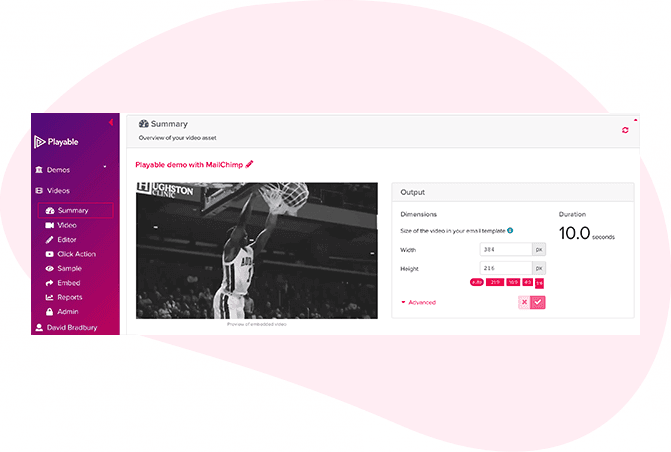
A summary of your video
Once you have uploaded your video, you will be sent to the Summary page.
Playable automatically creates a 10-second preview of your video but this can be changed later.
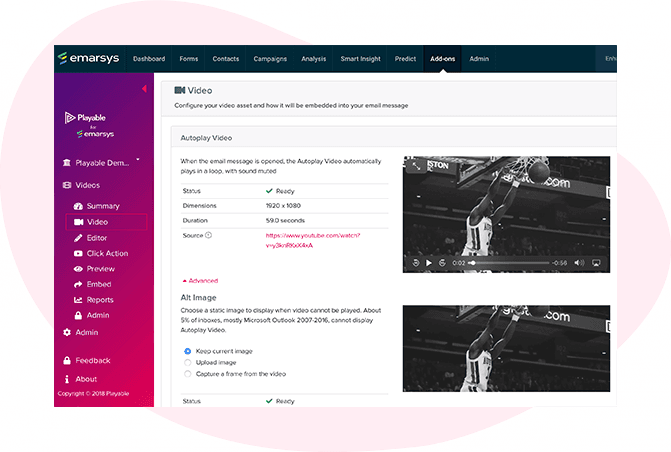
Setting the default image
Set an Alt Image by clicking on Advanced in the video menu. This is to ensure that user environments where video playback (<2%) is not supported can view a static image.
An image will be automatically selected from the video. If you want a different image, you can upload a specific image or choose a frame from the video.
Edit your video email
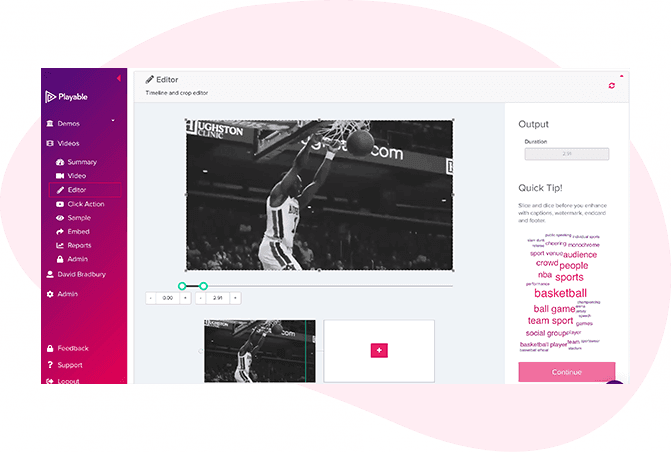
Once you have configured your video, you can edit your video in the Editor.
The Editor will enable you to create a video clip from the full-length video which will be played in your video email. You can choose to:
Crop the video clip
Change video duration
Select multiple scenes or frames
Preview your edits
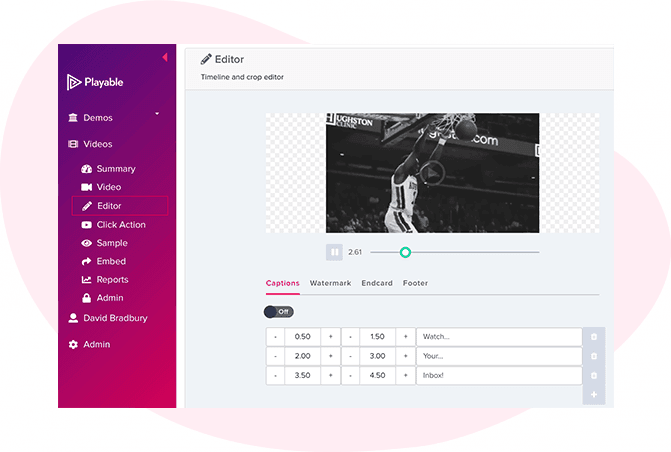
Enhance your video email
You can also add video enhancements, including captions, watermarks, an endcard or a footer.
Once you are happy with your video clip, click Compile to continue. Playable compiles the video clip to create multiple versions, ensuring each recipient receives an optimized video most suitable for their device, bandwidth, and connection.
Add a Call-to-Action (CTA)
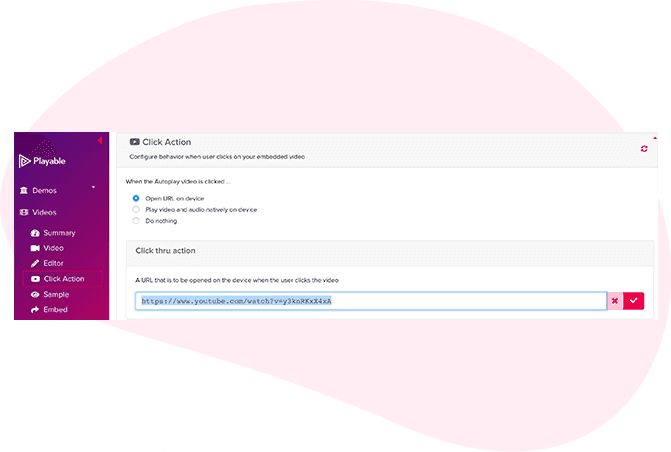
Navigate to Click Action to add a CTA link to the video.
Choose the option to Open URL on device and paste the URL link of the landing page to redirect recipient once they click on the video in the email.
Preview and sample your video email
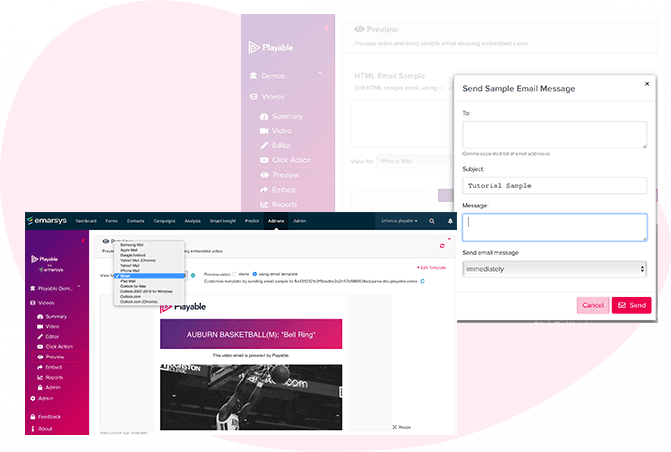
Preview your video email in major email clients by using the drop-down above the preview window.
You can also send a sample of your video email for review.
Click Sample
Complete the form
Click Send
Once you are happy with the sample, navigate to Embed.
Import Your Video Into Playable
Embed the video into your Emarsys email
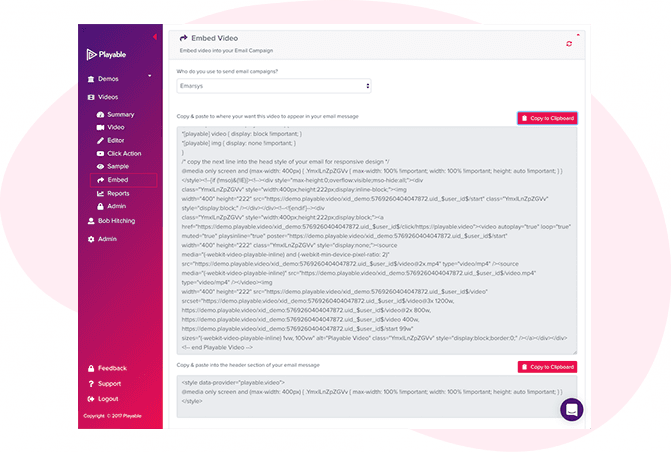
To embed the video into your Emarsys email, select Emarsys from the drop-down list of email providers.
The HTML Embed Code, optimized for Emarsys, emails will appear below. Click Copy to Clipboard to copy the entire embed code to use in your Emarsys email.
Paste the embed code into the HTML email template
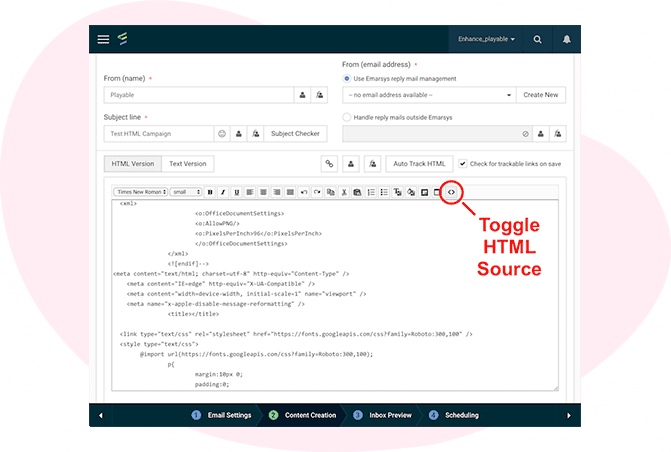
Return to the Emarsys HTML Email Editor, click on Toggle HTML Source to reveal the HTML of the email template.
Paste Playable's HTML Embed Code directly into the position where you want to display the video.
Continue to test and publish your video email in Emarsys.